
Product
Investigating CPU Usage With Profiles
Step-by-step walkthrough for finding the functions behind a CPU-heavy service with Last9 Profiles, plus best practices.
This walkthrough uses the services view, flamegraph, and top functions together to find what is driving CPU usage in a service.
Walkthrough
-
Open Profiles, select the environment, and set the time range to cover the period of interest.
-
Sort by CPU share and pick the service at the top, or the one whose share is higher than you expect.
-
In the flamegraph, find the widest application frames below the HTTP or RPC server frames. These are the handlers that use the most CPU.
-
Click a handler to zoom in and follow its widest children down to where the width narrows. The frames where width drops sharply, or where Self is high, are where the time is spent.
-
Switch to Top functions and sort by Self samples to confirm the hottest functions across all call paths.
-
Turn on Hide runtime to check how much of the cost is in your code versus the runtime.
Example
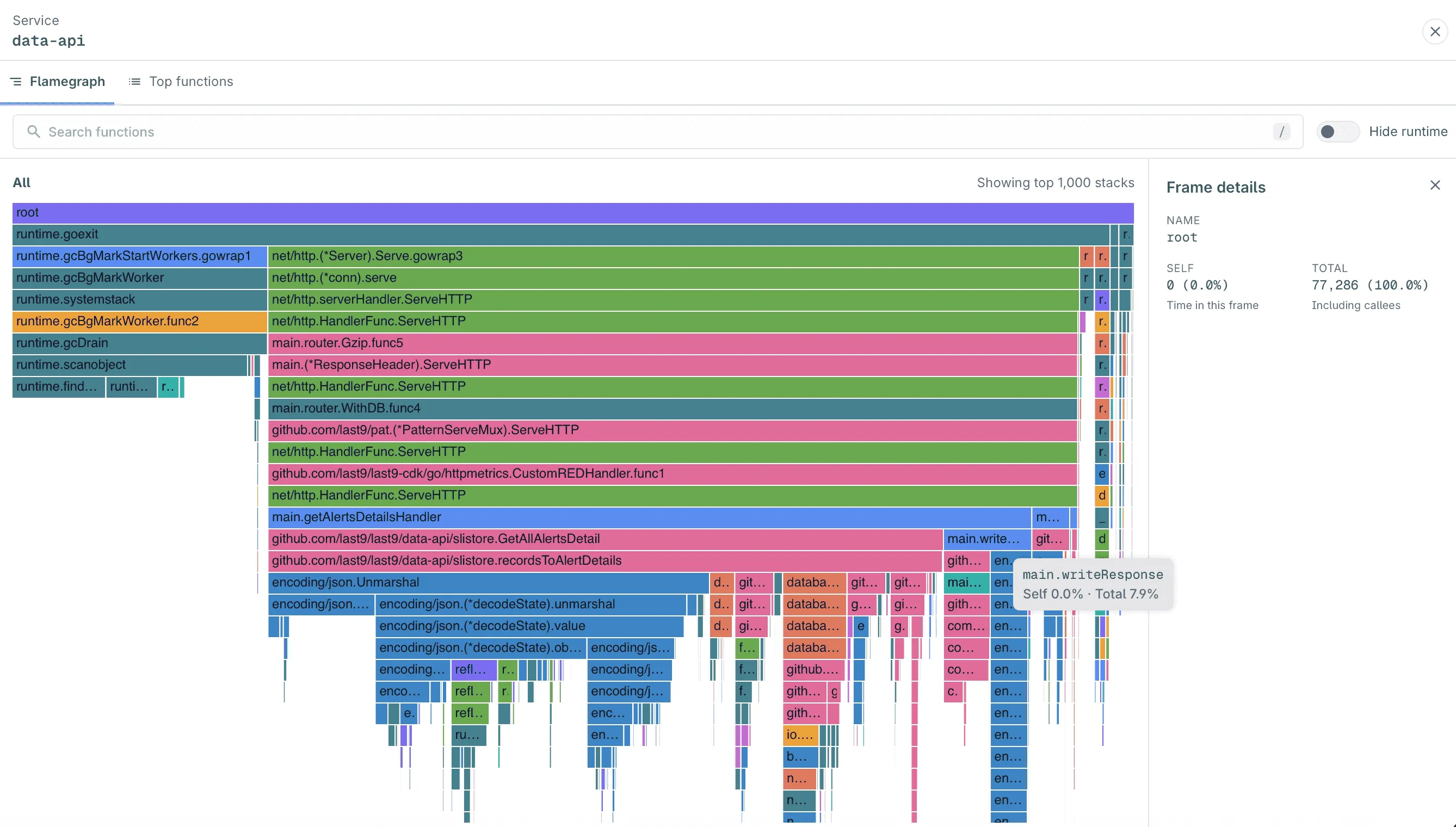
In this service, getAlertsDetailsHandler accounts for most of the CPU. Zooming in shows the time split between encoding/json.Unmarshal and database row reads. Top functions shows runtime.scanobject and runtime.mallocgc near the top.
Together these suggest two fixes: decode less JSON per request, and reduce allocations to lower garbage collection cost.
Best Practices
- Profile a symbolizable workload first. Validate your setup with a Go, Java, or similar service that has symbols, before profiling stripped or minimal images.
- Pick a time range that matches the problem. Use a short range around a spike to isolate it, and a longer range to find steady-state hot spots.
- Compare Self and Total. Optimize frames with high Self; use high Total frames to understand which entry points lead there.
- Check the runtime before tuning code. A large share in garbage collection or allocation frames usually means reducing allocations will help more than optimizing logic.
- Set environment and cluster attributes. Consistent
deployment.environment.nameandk8s.cluster.namevalues keep filters and the environment selector useful.
Troubleshooting
See Troubleshooting in the Profiles overview for missing data and setup issues.
Please get in touch with us on Discord or Email if you have any questions.