
Product
Profiles
Find which functions consume CPU in your services with continuous profiling, flamegraphs, and a top functions view in Last9.
Profiles shows where your services spend CPU time, down to the function. Last9 collects stack samples continuously from running processes, so you can investigate a slow or expensive service without reproducing the problem or attaching a profiler by hand.
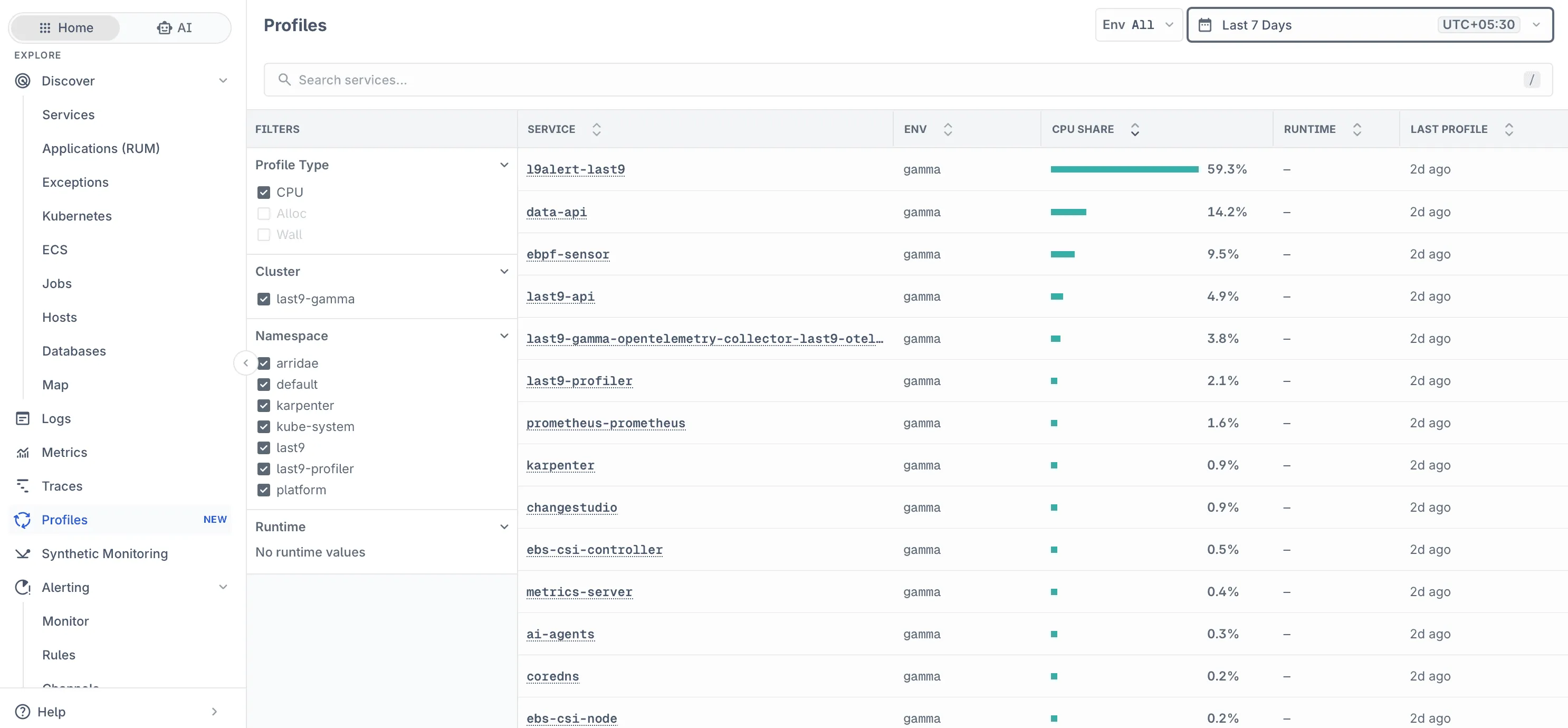
Use Profiles to answer questions that metrics and traces cannot answer on their own:
- Which service is consuming the most CPU in a cluster?
- Which functions inside that service are responsible?
- Is the time going into application code, a library such as a JSON decoder or database driver, or the language runtime (for example, garbage collection)?
Prerequisites
Profiles needs a profiler sending data to Last9 over OTLP. On Kubernetes, install the Last9 eBPF profiler Helm chart and add the opt-in label to the workloads you want to profile. See Kubernetes Profiling for setup steps.
The eBPF profiler does not require code changes or application restarts beyond rolling out the opt-in label.
Accessing Profiles
Open Profiles from the left navigation, below Traces.
You can also open profiles for a single service from Services. Select a service and open the Profiles tab to see the flamegraph scoped to that service and its environment.
Profile Types
| Type | What it measures |
|---|---|
| CPU | Time functions spend running on the CPU. Default type. |
| Alloc | Memory allocations by function. |
| Wall | Wall-clock time, including time spent waiting or blocked. |
The Kubernetes eBPF profiler collects CPU profiles. Alloc and Wall become available when a profiler that produces those sample types sends data. Types without data in the selected range are disabled in the filter.
Using Profiles
Services View
Find the services using the most CPU, and filter by cluster or namespace
Flamegraph
Read call stacks, inspect frames, zoom, search, and hide runtime frames
Top Functions
Rank functions by self and total samples
Investigating CPU Usage
A step-by-step walkthrough, with best practices
Troubleshooting
-
No data on the Profiles page
-
Profiles not set up. Join the waitlist. Continuous profiling is not enabled for the organization. Click Join Waitlist.
-
No profile data found. No samples arrived in the selected range. Widen the time range, then confirm the profiler is running and the workload has the
last9.profiling/enabled: "true"label:kubectl get daemonset last9-profiler -n last9-profilerkubectl get pods -A -l last9.profiling/enabled=true -
A service is missing from the list. Check that the pod template, not only the Deployment metadata, carries the opt-in label, and that the workload was rolled out after the label was added.
-
Please get in touch with us on Discord or Email if you have any questions.