
Product
Profiles Flamegraph
Read a Last9 profiles flamegraph: frame width, self and total samples, zooming into call paths, function search, and hiding runtime frames.
Click a service name in the services view to open its flamegraph in a side panel.
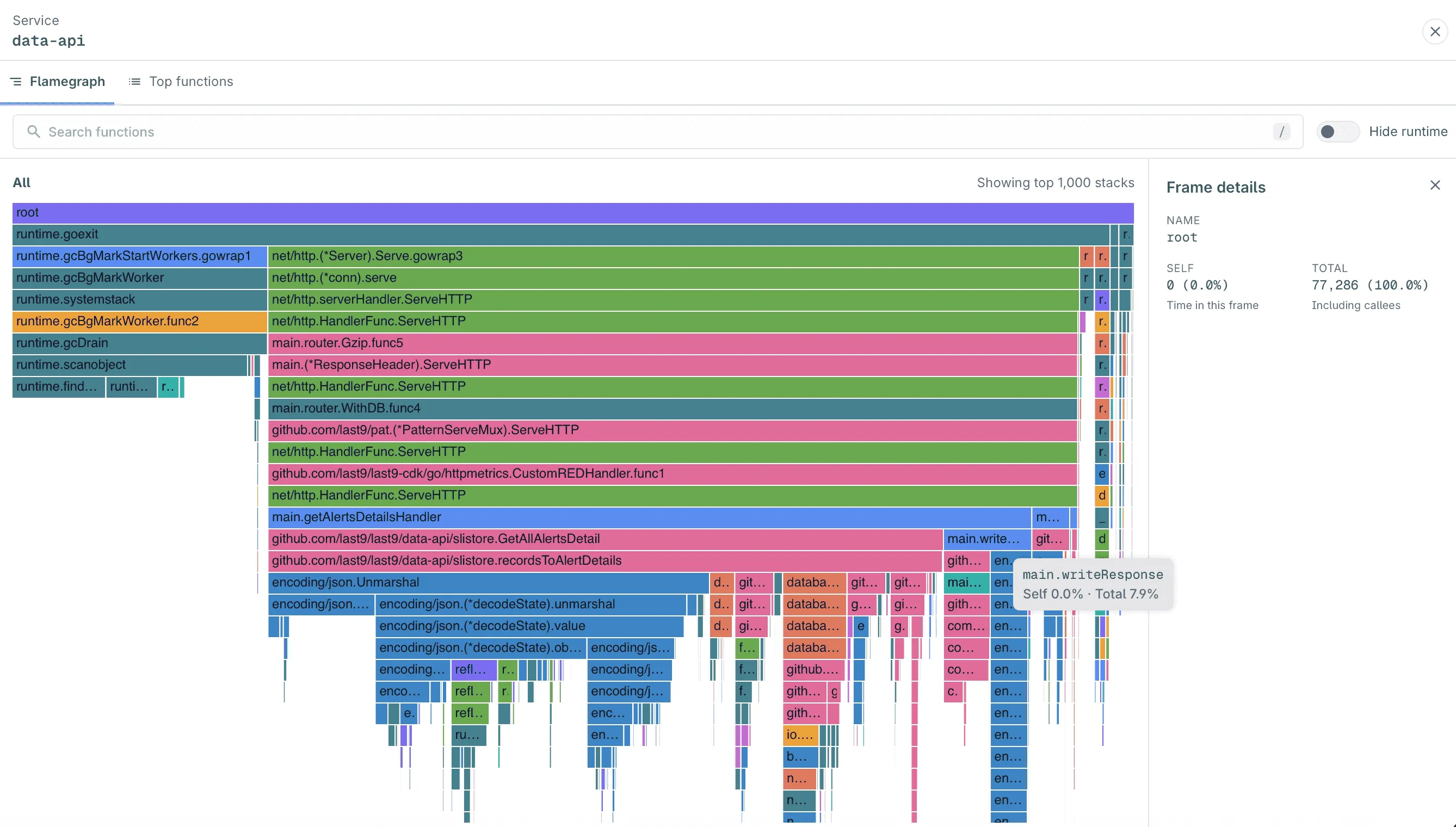
Reading a Flamegraph
A flamegraph aggregates all sampled call stacks for the service in the selected range:
- Each bar is a function (a frame). The bar at the top,
root, represents all samples. - Bars below a frame are the functions it called. Read from top to bottom to follow the call path.
- Width is the share of samples. A wider bar means more CPU time was spent in that function and everything it called.
- Colors group frames by package, so you can spot a library or module across the graph. Color does not indicate severity.
- Horizontal order is not time. Frames are merged by call path, so left-to-right position has no meaning.
The flamegraph renders the top 1,000 stacks for the service, as shown by Showing top 1,000 stacks above the graph.
Inspecting a Frame
Hover over a frame to see its Self and Total share. Click a frame to pin it in the Frame details panel:
| Field | Meaning |
|---|---|
| Name | Fully qualified function name. |
| Self | Samples where this function was executing its own code (Time in this frame). |
| Total | Samples where this function was on the stack, including functions it called (Including callees). |
| StackHash | Identifier of the hottest stack through this frame. |
| File | Source file and line, when available for the runtime. |
A frame with high Total but low Self is a caller: the cost is in the functions beneath it. A frame with high Self is where the CPU is actually burning.
Zooming Into a Call Path
Click a frame to zoom in. The selected frame becomes the new top of the graph, and its callees expand to the full width so you can read narrow frames.
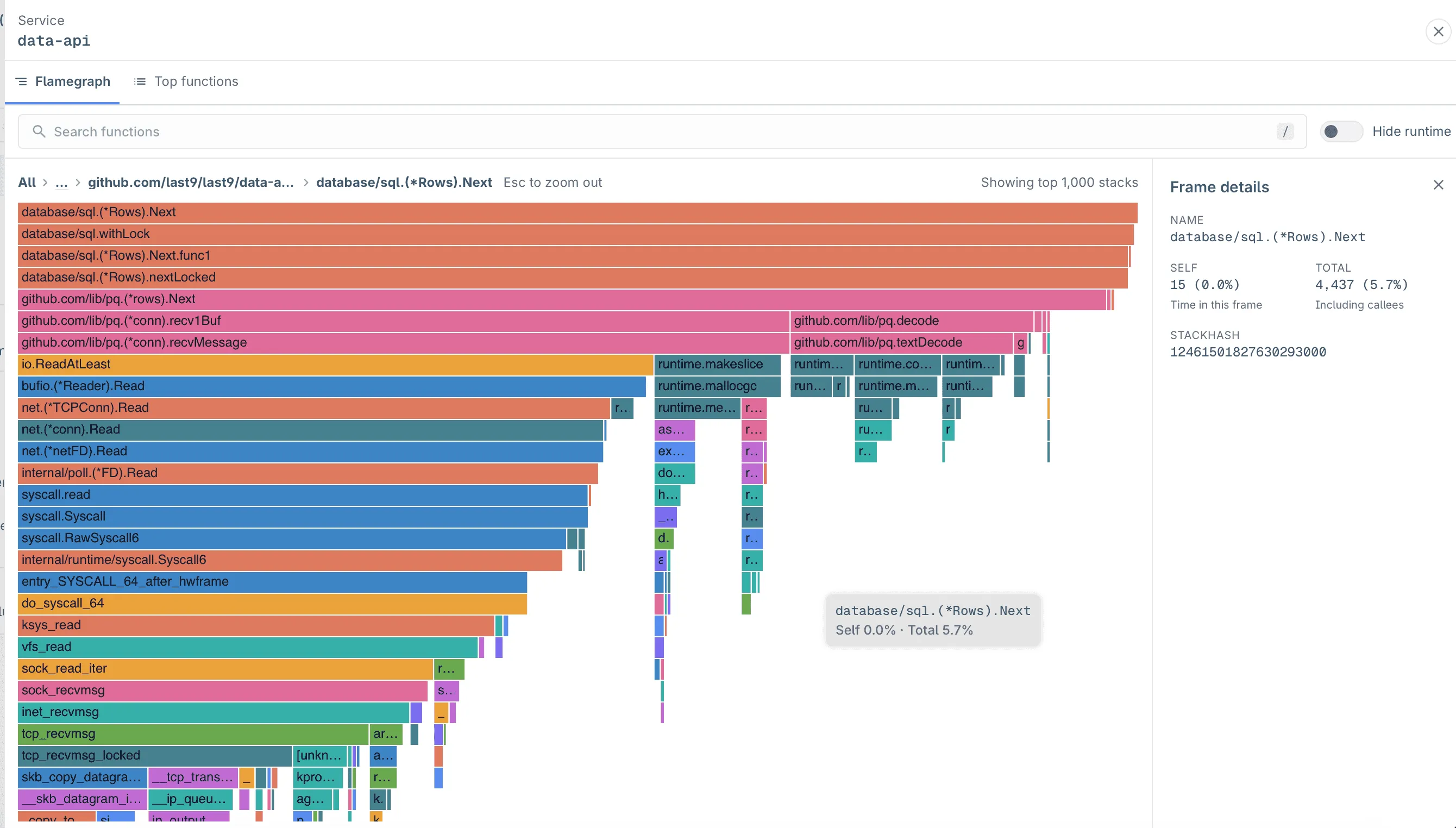
The breadcrumb above the graph shows the zoom path, starting from All. Click any crumb to zoom back out to that level, or press Esc to zoom out.
In the CPU profile above, zooming into database/sql.(*Rows).Next shows a larger share of its samples in the socket-read path (net.(*conn).Read down to kernel tcp_recvmsg) than in row decoding. This is CPU spent in the database-read path, including kernel work receiving and copying socket data. The bar widths do not measure time blocked waiting for a database response. Corroborate with database spans in Traces or a wall-clock or off-CPU profile before concluding that database waiting is the bottleneck.
Searching for Functions
Type in Search functions to highlight matching frames. Non-matching frames are dimmed, which makes it easy to see every place a function or package appears across call paths. Press / to focus the search box.
Hiding Runtime Frames
Turn on Hide runtime to remove language runtime and system frames, such as Go runtime.*, garbage collection, syscall.*, java.*, libc, and [unknown] frames. Their children move up so that your application code takes up more of the graph.
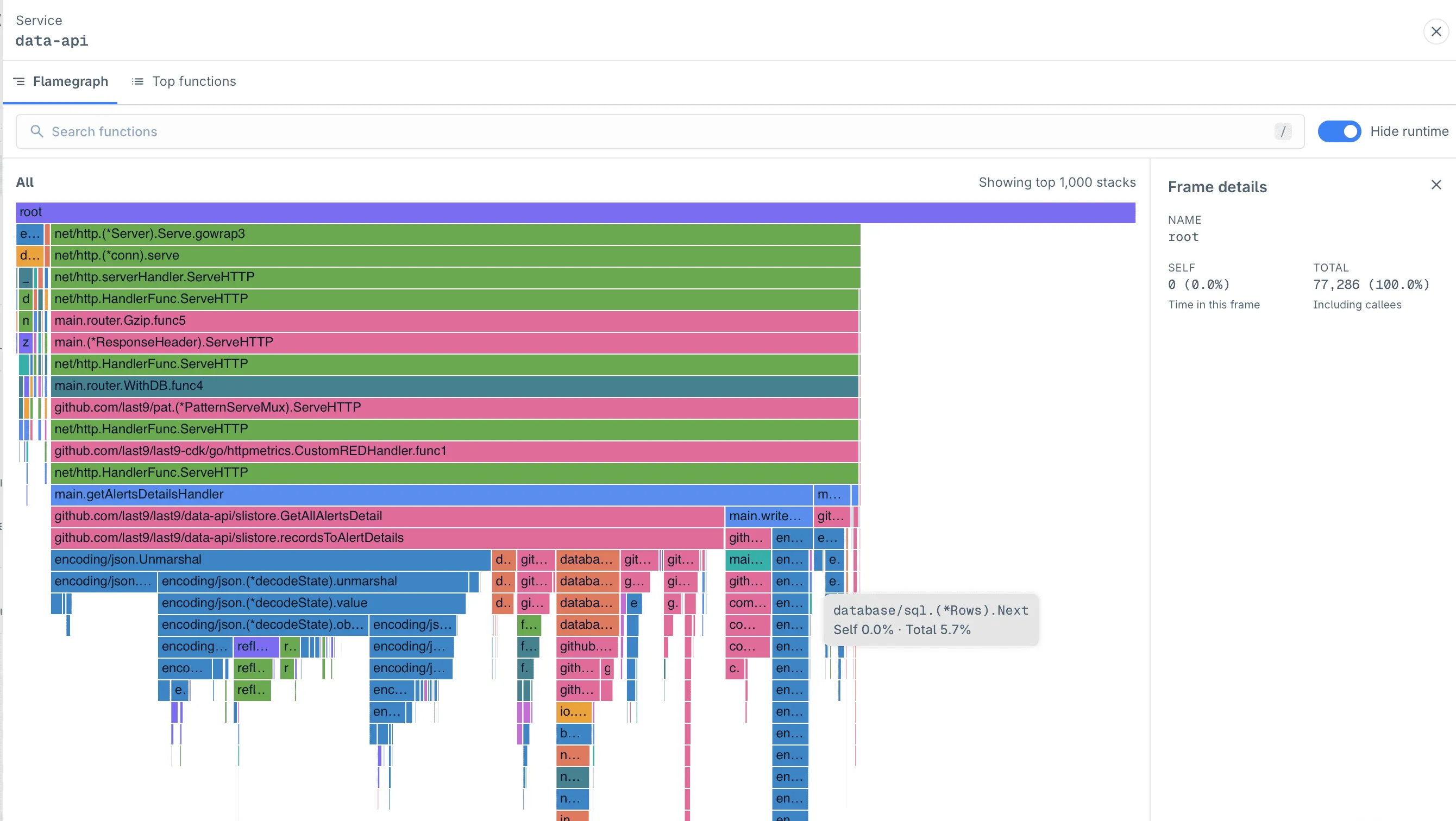
Use this to focus on code you own. Turn it off when you suspect the runtime itself, for example when garbage collection takes a large share of CPU.
Troubleshooting
-
Flamegraph shows
[unknown]frames- Frames appear as
[unknown]. The profiler could not resolve symbols for that process. This is common with stripped binaries and minimal images. Collection and ingestion are still working. See Kubernetes Profiling for details. - Old frames stay unknown after a fix. Frames are not re-symbolized after ingestion. Only new samples show resolved names.
- Frames appear as
Please get in touch with us on Discord or Email if you have any questions.