
Product
Receive Alert Notifications via Slack
Setup Slack integration and receive alert notifications from Last9.
Getting started
Last9 can send alert notifications and resolutions to Slack channels. The recommended setup is to install the Last9 Slack App into your workspace and pick the destination channel from a dropdown — no webhook URL or custom Slack app required.
Prerequisites
- A Slack workspace where you can authorize new apps. If you cannot install apps yourself, ask a workspace admin to approve the OAuth request.
- A Last9 organization with permission to manage notification channels.
Connecting your Slack workspace
You only need to do this once per Last9 organization. The same workspace can be connected to multiple Last9 organizations independently.
-
In Notification Channels, click Add to create a new channel.
-
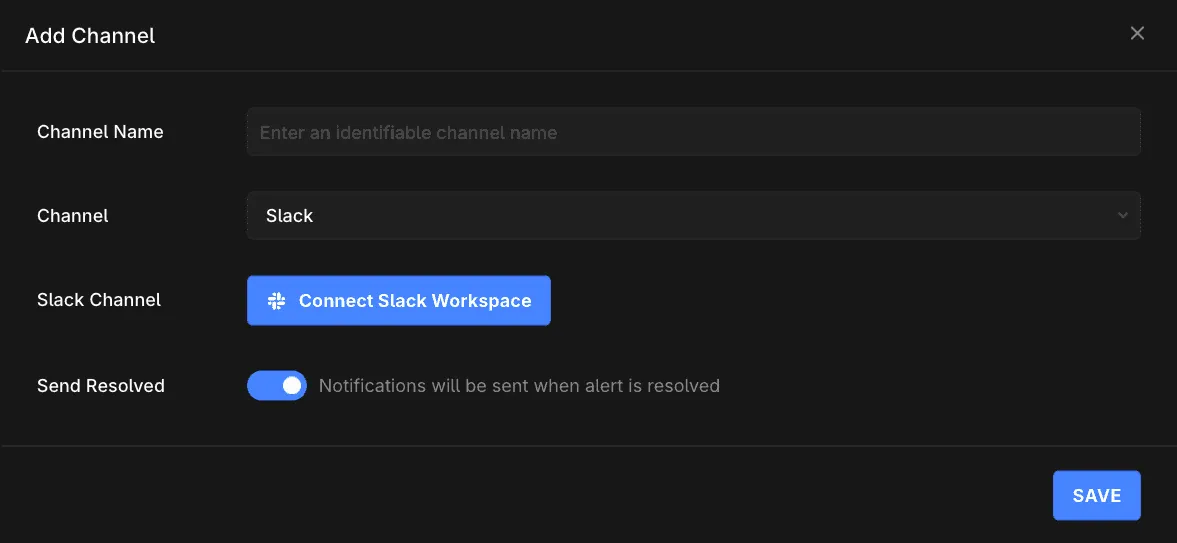
Select Slack as the channel type.
-
Click Connect Slack Workspace. Slack opens in a new tab and shows the list of permissions Last9 requests.
-
Review the scopes and click Allow. Slack redirects back to Last9 and the original tab refreshes automatically — you do not need to reload the page.
The Last9 Slack App requests the following permissions:
| Scope | Why it’s needed |
|---|---|
channels:read | List public channels in the channel picker |
groups:read | List private channels Last9 has been added to |
channels:join | Join public channels automatically when posting first alert |
chat:write | Post alert notifications |
users:read | Resolve user mentions in alert templates |
users:read.email | Match Slack users to Last9 users for alert routing |
reactions:write | Mark the original alert message with a ✅ when it resolves |
Setting up a notification channel in Last9
-
In Notification Channels, click Add.
-
Provide the following details:
- Channel Name: A descriptive name to easily identify the channel (e.g., “Slack Production Alerts”).
- Channel: Select Slack.
- Slack Channel: Pick the destination channel from the dropdown. Public channels are listed by default; private channels appear only after you’ve added the Last9 Slack App to them (see note below).
- Send Resolved: Enable this option if you want to be notified when an alert has been resolved.
-
Click Save to enable the channel.
Once saved, you’ll see a confirmation message from the Last9 app in the selected Slack channel — something like “Last9 has been added to #your-channel by [you]”. That confirms the integration is wired up and ready to receive alerts.
Assigning a notification channel to an alert group
-
Navigate to your Alert Group in Alerting.
-
Click on the notification channel icon to configure notifications.
-
Select your Slack channel from the dropdown.
Slack notification format
Last9 sends rich notifications to Slack that include:
| Field | Description |
|---|---|
| Event Type | TRIGGER or RESOLVED indicator |
| Summary | Alert title and description |
| Severity | BREACH (critical) or THREAT (warning) |
| Component | The affected component or service |
| Class | Type of alert (e.g., Static Threshold, SLO Breach) |
| Timestamp | When the alert was triggered |
| Custom Details | Additional context like service, environment, error rates |
| Dashboard Link | Direct link to view the alert in Last9 |
Threaded repeats and resolved reactions
For channels delivered through the Last9 Slack App, the full lifecycle of an alert stays in one place:
- Repeat notifications post into the thread of the original alert message instead of as new top-level messages. A flapping or long-running alert occupies one message in the channel, with its history in the thread.
- Resolved alerts get a ✅ reaction on the original message, so the channel shows the alert is done without another message. If Send Resolved is enabled, the resolution message also goes into the thread.
Both behaviors apply only to Slack App channels. Webhook-based channels cannot thread or react — they continue to post each notification as a separate message, as before.
Mentioning users or user groups in Slack alerts
To @-mention a user or user group in a Slack alert, use Slack’s mrkdwn mention syntax inside the alert template:
| Mention | Syntax |
|---|---|
| User | <@USER_ID> |
| User group | <!subteam^GROUP_ID> |
| Channel-wide | <!channel> or <!here> |
Find a user ID by clicking the user’s profile in Slack → More → Copy member ID. User group IDs are visible in the URL when editing the group at /admin/user_groups.
Example alert template body
<!subteam^S0123ABCD> :rotating_light: *{{ alert_name }}* — {{ severity }}
Service: `{{ service }}`Environment: `{{ env }}`Error: {{ error_message }}Time: {{ timestamp }}
<{{ dashboard_url }}|Open in Last9>
Using Terraform
You can also create the Slack notification channel using the Last9 Terraform Provider:
resource "last9_notification_channel" "slack" { name = "slack-production-alerts" type = "slack" destination = "C0123ABC456" send_resolved = true}destination is the Slack channel ID (starts with C for public, G for private). Find it from the channel’s About panel in Slack, or from the URL: https://app.slack.com/client/<TEAM_ID>/<CHANNEL_ID>.
Migrating from Incoming Webhooks
Existing notification channels that use an https://hooks.slack.com/... webhook URL continue to work. To migrate to the Slack App:
- Connect the Slack workspace to your Last9 organization (see above).
- Edit each existing Slack notification channel.
- Change Channel to a non-Slack type (e.g., Email), then switch it back to Slack. The form will now show the channel dropdown instead of the webhook URL field.
- Pick the same channel from the dropdown and click Save.
For Terraform-managed channels, change the destination from the webhook URL to the channel ID. No other field needs to change.
You don’t have to migrate immediately — webhook-based channels keep working in parallel.
Troubleshooting
-
“Connect Slack Workspace” fails or returns an error
- Confirm the Slack admin in your workspace permits installing third-party apps. Some workspaces require admin approval before users can install apps.
- Make sure pop-ups are not blocked — the OAuth flow opens Slack in a new tab.
- If the original tab does not refresh after approval, reload it manually and retry the channel picker.
-
Channel does not appear in the dropdown
- The dropdown lists public channels and private channels Last9 has been added to. For private channels, run
/invite @Last9in the channel and reopen the dropdown. - Archived channels are filtered out.
- If the channel was created very recently, give Slack a few seconds and reopen the dropdown.
- The dropdown lists public channels and private channels Last9 has been added to. For private channels, run
-
Notifications not appearing in Slack
- For private channels, ensure
@Last9has been invited to the channel. - Confirm you saw the “added to” confirmation message in Slack when the notification channel was saved. If not, the channel may not be reachable — re-edit the notification channel and reselect it.
- Verify the channel has not been archived or renamed in a way that revoked access.
- If you removed the Last9 Slack App from your workspace, reconnect it via Connect Slack Workspace.
- For private channels, ensure
-
@usermention not triggering notification- Verify the mention syntax. Slack requires
<@USER_ID>(not@username). Find the user ID via Slack profile → More → Copy member ID. - Move the mention to the first line of the alert template body. Mentions buried inside attachment fields or context blocks may render visually but skip notification on some Slack clients (notably mobile).
- Confirm the user is a member of the channel that Last9 posts to. Mentions of non-members do not generate notifications.
- For user groups (
<!subteam^GROUP_ID>), confirm the group is enabled at/admin/user_groups— disabled groups silently drop mentions.
- Verify the mention syntax. Slack requires
-
Rate limiting
Slack has rate limits on
chat.postMessage. If you’re sending a high volume of alerts, some messages may be delayed. Consider consolidating alerts using alert grouping in Last9. -
Legacy webhook stopped working
If a webhook-based channel has stopped delivering, migrate it to the Slack App using the steps in Migrating from Incoming Webhooks. Webhooks created in your own custom Slack app can be revoked when that app is uninstalled or rotated; the Last9 Slack App removes that risk.
Please get in touch with us on Discord or Email if you have any questions.