
Product
Users
Manage organization members, their roles, access mode, and invitations from a single Users page.
The Users page is where you manage who can access Last9 and what they can do once they’re in. It combines access control (who can sign in) with role-based permissions (what each user can do) and supports inviting, deactivating, and reactivating users.
Navigate to Settings > Users to manage your organization’s members.

Access Modes
Last9 supports two access modes for your organization:
Open Access (Default)
Anyone with an email matching one of your organization’s allowed domains can sign up and access the organization. The first user to sign up is the associated admin and their email’s root domain becomes the initial allowed domain.
Invite Only Mode
Only users explicitly invited by an admin can sign in. New users with a matching domain are denied unless an admin has invited them. Existing active users keep their access when you switch to Invite Only Mode.
To toggle the access mode:
- Navigate to Settings > Users
- Click the ⋮ (more options) menu next to Invite Users
- Select Invite Only Mode or Open Access
- Confirm the change in the dialog
User Roles
Last9 supports three roles that determine what actions users can perform:
Admin
Admins have full access to all features and settings, including managing other users and organization settings. Only admins can:
- Change any user’s role (including promoting users to Admin)
- Invite, deactivate, and reactivate users
- Toggle the access mode (open access ↔ invite only)
- Manage allowed domains
- Generate and revoke API refresh tokens
- View integration credentials and tokens
- Create and delete ingestion/query tokens
Editor
Editors can create, modify, and delete resources across Last9 — dashboards, alerts, SLOs, and other standard platform operations. Editor is the default role for new users joining your organization.
Editors can access the API Access page and exchange refresh tokens for access tokens, but they cannot generate new refresh tokens or view integration credentials.
Viewer
Viewers have read-only access across the Last9 platform, both in the web application and via APIs. Viewers can:
- Browse dashboards and metrics
- View configurations and settings
- Access reports and analytics
Viewers cannot:
- Create, edit, or delete any resources
- Save changes to configurations
- Modify alerts, SLOs, or other platform settings
- Access the API Access page or generate API tokens
- View integration credentials or tokens
Note on embedded Grafana: Open source Grafana doesn’t include the enterprise role-based access control features. As a workaround, Last9 blocks viewers from saving any edits. When viewers attempt to edit dashboards in the embedded Grafana, they can make changes in the UI, but those changes won’t be saved to the server.
API Token Permissions
Access to API tokens and sensitive credentials is controlled based on user roles:
| Capability | Viewer | Editor | Admin |
|---|---|---|---|
| Access API Access page | ❌ | ✅ | ✅ |
| Generate refresh tokens | ❌ | ❌ | ✅ |
| Revoke refresh tokens | ❌ | ❌ | ✅ |
| Exchange refresh token for access token | ❌ | ✅ | ✅ |
| Create ingestion tokens | ❌ | ❌ | ✅ |
| Create query tokens | ❌ | ❌ | ✅ |
| Delete ingestion/query tokens | ❌ | ❌ | ✅ |
| View integration credentials | ❌ | ❌ | ✅ |
User Status
Each user is in one of three states, shown as grouped sections in the Users table:
- Active — has access to the organization
- Invited — invited by an admin in Invite Only Mode but hasn’t signed in yet
- Deactivated — access revoked by an admin; historical data is preserved
Inviting Users
Admins can invite users by email. Invited users receive an email and appear in the Invited group until they sign in for the first time, after which they move to Active.
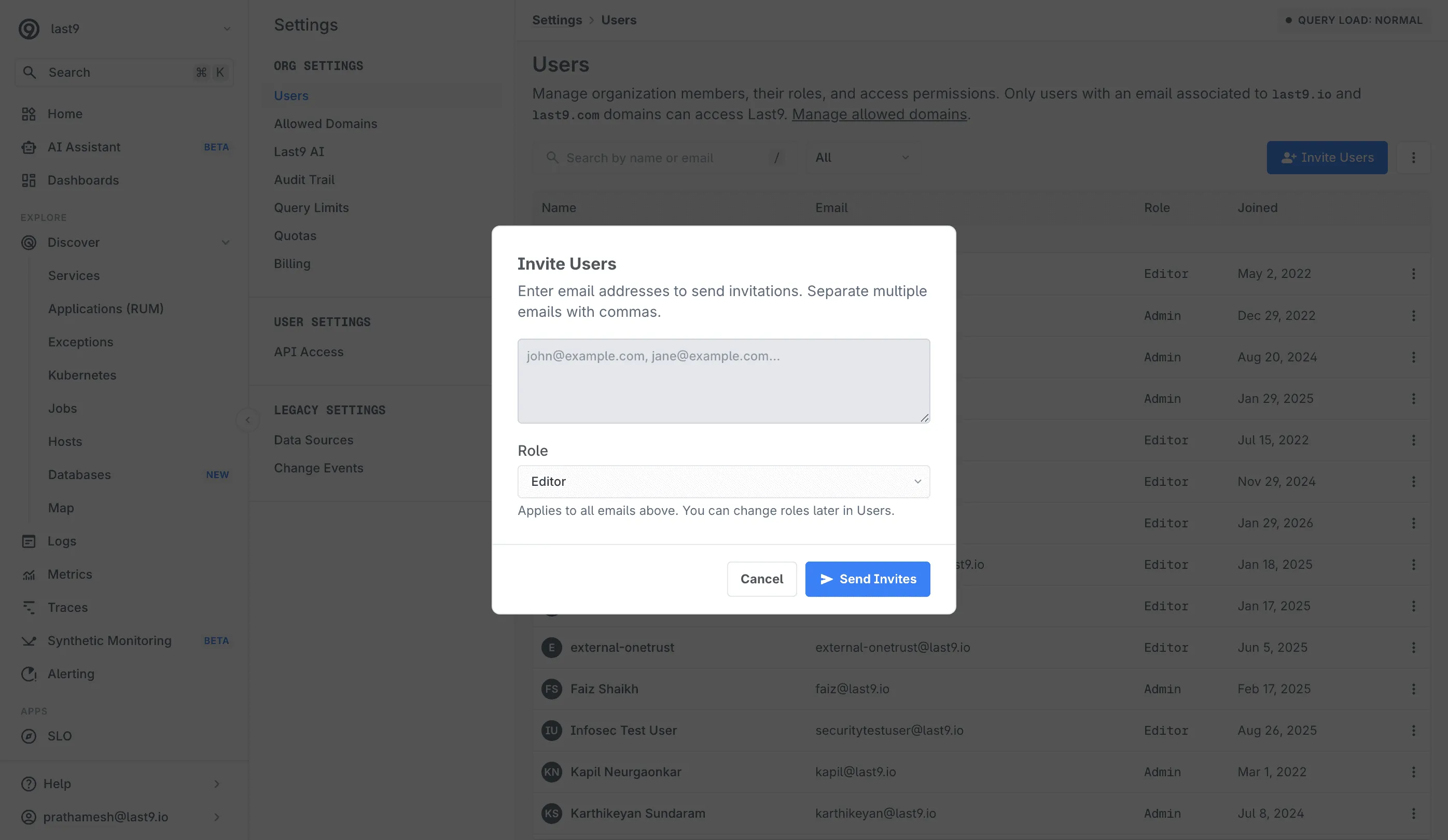
- Navigate to Settings > Users
- Click Invite Users
- Enter one or more email addresses (comma-separated)
- Select a role for the invited users (defaults to Editor)
- Click Send Invites
To resend or revoke a pending invite, click the ⋮ (more options) menu on the invited row and choose Resend Invite or Revoke Invite.
Managing User Roles
Only admins can update user roles. To change a user’s role:
- Navigate to Settings > Users
- Locate the user whose role you want to change
- Click the ⋮ (more options) menu and hover over Change Role
- Select the new role from the submenu
Changes take effect immediately, and the user will see updated permissions on their next action or page refresh.
Deactivating Users
Admins can deactivate users who no longer need access to the organization. Deactivating a user:
- Revokes their access to the Last9 platform
- Preserves their historical data and audit trail (viewable in Settings > Audit Trail)
- Moves the user to the Deactivated group in the Users table
- Navigate to Settings > Users
- Locate the user you want to deactivate
- Click the ⋮ (more options) menu
- Select Deactivate User
- Confirm the action in the dialog
Reactivating Users
Admins can reactivate previously deactivated users, restoring their access to the organization.
- Navigate to Settings > Users
- Locate the deactivated user in the Deactivated group
- Click the ⋮ (more options) menu
- Select Activate User
- Confirm the action in the dialog
Once reactivated, the user regains access, their previous role is restored, and they can log in immediately.
Filtering and Searching
The Users table provides search and filtering to help you manage larger teams:
- Search: Search by name or email using the search box
- Filter by role: Use the role filter dropdown to show only Admins, Editors, or Viewers
- Status grouping: The table is grouped by status — Active, Invited, and Deactivated
Controlling access to Grafana Dashboards
To restrict access to specific dashboards, reach out to support@last9.io with the detailed requirement. Last9’s Access Control layer can restrict specific users to certain dashboards based on demand.
Troubleshooting
An org is missing when you belong to multiple
If you have access to more than one Last9 org and one of them doesn’t show up after signing in:
- Sign out and sign back in to refresh your session.
- Ask an admin of the missing org to confirm they assigned you a role there. In Invite Only Mode, having a matching email domain isn’t enough — an admin has to explicitly invite you.
- If the org is still missing, email support@last9.io with your email address and the org name.
Please get in touch with us on Discord or Email if you have any questions.