
Product
Application Sessions
Analyze user journeys, session duration, and engagement patterns to understand how users navigate through your application.

Analyze user journeys, session duration, and engagement patterns to understand how users navigate through your application.
The Sessions tab in Discover > Applications provides detailed insights into user behavior patterns, session duration, and navigation paths. Understand how users interact with your application and identify drop-off points or problematic user flows.
Understanding Sessions and Views
What is a Session?
A session represents a period of continuous user activity. The scoping rules differ by platform:
Web
- Tab-based: each browser tab creates a separate session, even for the same user
- Maximum duration: sessions automatically end after 4 hours. If a user is actively browsing when the 4-hour limit is reached, a new session begins automatically
- Independent tracking: multiple tabs from the same user are tracked as separate sessions
Mobile
- App-install-based: one session per app install at a time — not per tab. Multiple app launches within the idle window join the same session.
- Idle timeout: sessions roll over when the app stays backgrounded past the SDK’s idle threshold
- Maximum duration: sessions also roll over when they exceed the configured max duration, matching web behavior
- Session-preserving operations: foregrounding within the idle window and identifying a user do not change
session.id. From mobile SDK1.6.9(iOS and Android),flush()also preserves the active session;shutdown()intentionally ends it.
What is a View?
A view represents a discrete user-facing screen within a session.
Web
- A view is a page load. Only actual page navigation creates new views — query parameter changes (e.g.
/products?category=shoes→/products?category=shirts) do not create new views.
Mobile
- A view is a screen transition: Activity lifecycle on Android, view-controller lifecycle on iOS,
NavigatorObserverpush on Flutter, React Navigation state change on React Native. Screen name comes from the SDK’s automatic tracking or an explicitstartView(name)call.
Accessing Session Analysis
- Navigate to Discover > Applications in Last9
- Click the Sessions tab
- Choose your version and environment version from the top filters
- Set your desired time range using the date picker
Session Overview Table
The main interface displays a list of user sessions with key metrics:
- Session Start Time: when the session began
- Session ID: unique identifier
- User: user associated with the session (set via
identify()) - Duration: total time from session start to last activity
- Views: pages viewed (web) or screens opened (mobile)
- Views with Errors: count of views that experienced errors
- First / Last — the entry and exit point of the session:
- Web: URL path (
pathattribute) - Mobile: screen name (
view.nameattribute)
- Web: URL path (
This table helps identify long-duration (engaged) sessions, short (bounce) sessions, error-prone sessions, and common entry/exit patterns.
Custom attributes added via L9RUM.spanAttributes() (web) or L9Rum.spanAttributes() (mobile) become available as filters for isolating sessions by organization, workspace, or other business dimensions.
Individual Session Details
Click on any session to view detailed information about the user’s journey:
Session Metadata
Each session provides context appropriate to its platform:
Web
- Browser: Chrome, Firefox, Safari, etc.
- Operating System: macOS, Windows, Linux, iOS, Android (browser platform)
- IP Address: user’s network location
- Geolocation: country, region, city (when available)
- Session Duration: total time from first to last page view
Mobile
- OS: Android / iOS name and version
- Device: brand and model (e.g. Samsung Galaxy S23, iPhone 15 Pro)
- App Version: release version the user was on
- Network Type: WiFi, cellular, offline
- Geolocation: country and city, when supplied through the SDK’s
resourceAttributes - Session Duration: total time from session start to last activity
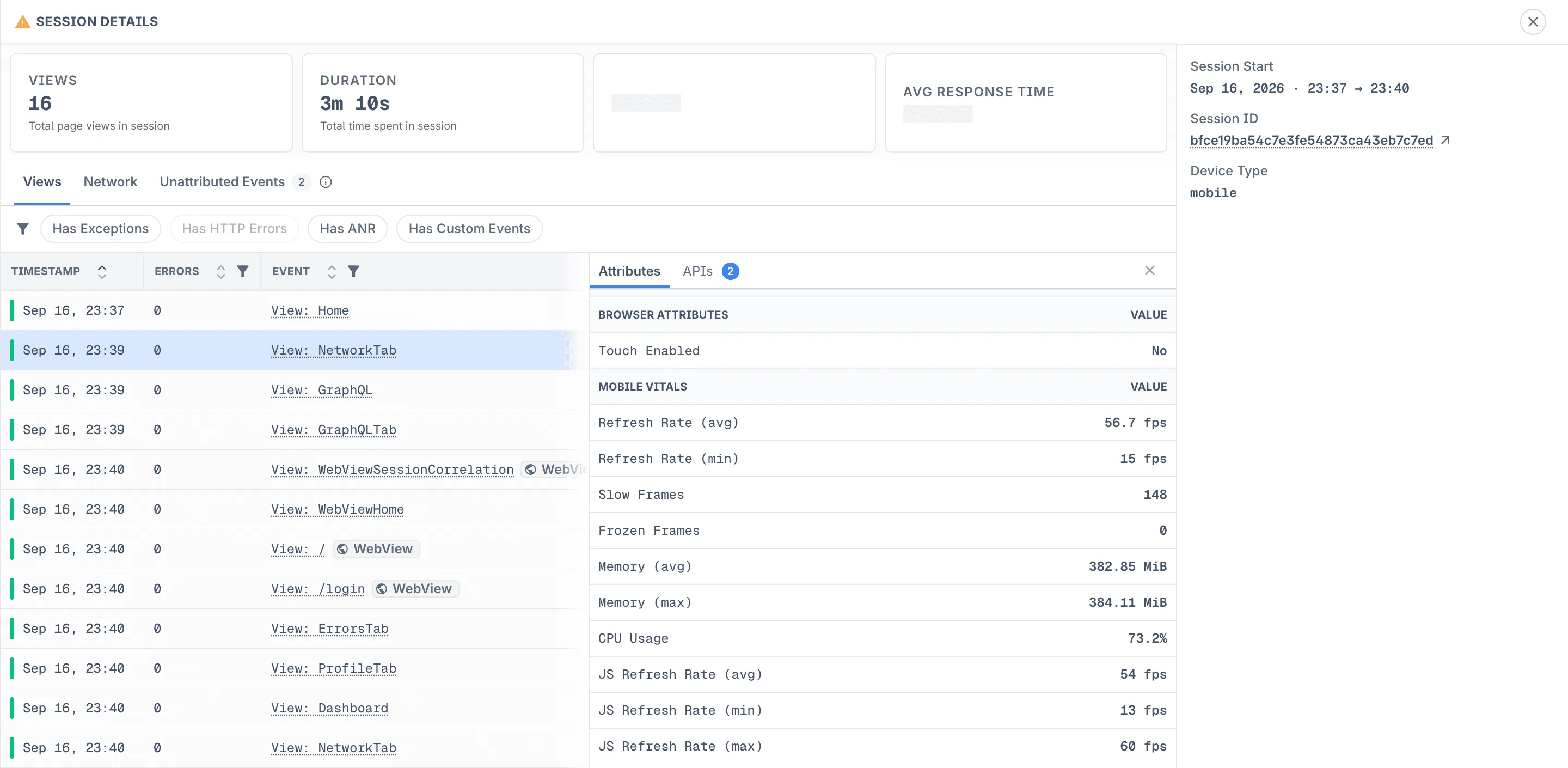
Page View Timeline
See the complete user journey with:
- Timestamp: Exact time of each page view
- Errors: Number of errors encountered on each page
- Event Type: View events and navigation patterns
The session detail view provides two filtering tabs for analyzing the timeline:
- All Views: Shows every page view in the session, including both successful and error views (indicated by the number badge showing total views)

- Views with Errors: Filters to show only the page views that experienced errors (indicated by the number badge showing error count), helping you focus on problematic interactions

View Details Panel
Click on any view within a session to see per-view detail.
Web view details
- View Information: view ID, time spent, query parameters
- Page Attributes: host, path
- Browser Attributes: screen width/height, browser name and version, OS platform, touch support, network type, user agent
- Web Vitals: TTFB, LCP, FCP, CLS (per-view values)
Mobile view (screen) details
- View Information: view ID, time spent on screen, screen name
- App Attributes: app version, build ID, installation ID
- Device Attributes: OS name and version, device brand and model, network type
- Screen Load Time: duration from navigation intent to first frame (see Performance — Mobile Vitals)
- Mobile Vitals (SDK
v1.7.0+): refresh rate (avg/min), slow and frozen frame counts, memory (avg/max), CPU usage, and JS refresh rate on React Native. Attribute definitions are in the per-platform SDK docs, for example Android per-view performance vitals.
Backend Trace Correlation
Every outgoing HTTP request from the SDK includes a W3C traceparent header so the backend span shares a traceId with the client. The session timeline surfaces these trace links, letting you:
- Follow requests end-to-end from client to backend services
- Identify whether delays come from client, network, or backend
- Verify trace headers are being sent to the correct services
Configuration per platform:
- Web — enable
network.backendCorrelation. See Web RUM SDK — Backend Trace Correlation. - Mobile —
networkInstrumentation: trueis sufficient;traceparentis injected automatically by the OkHttp interceptor (Android), URLProtocol (iOS), fetch/XHR wrapper (React Native), or HttpOverrides (Flutter). Session ID propagation requires enablingbaggage— see the Session Correlation doc.
Custom Events in Timeline
Events tracked with L9RUM.addEvent() (web) or L9Rum.addEvent() (mobile) appear in the session timeline alongside views and errors. Events automatically include session and view context, helping you understand how user actions relate to performance and error patterns.
Searchable Event Attributes:
Custom event attributes are fully searchable, enabling you to filter sessions based on specific event data. For example:
- E-commerce: Filter by
attributes['merchant_id'],attributes['cart_value'], orattributes['payment_method'] - SaaS Applications: Search by
attributes['workspace_id'],attributes['feature_flag'], orattributes['subscription_tier'] - Content Platforms: Query using
attributes['content_id'],attributes['category'], orattributes['user_role']
This eliminates the need to emit duplicate log entries for custom event searchability—query span events directly in the RUM interface.
Filtering and Search
Use the search functionality to filter sessions by:
Path Filtering:
- Sessions that visited specific pages
- Entry or exit path patterns
- Navigation through particular flows
Attribute Filtering:
- Browser or device type
- Network conditions
- Geographic regions (country, city, etc.)
- Business dimensions via
L9RUM.spanAttributes()(tenant, workspace, feature flags) - Custom event attributes from
L9RUM.addEvent()(e.g.,attributes['merchant_id'],attributes['path'], custom business metrics) - Session duration ranges
- Error counts
Time-Based Filtering:
- Sessions within specific time windows
- Peak usage periods
- Post-deployment sessions
- Maintenance window impacts
Best Practices
- Track Critical User Journeys: Monitor important conversion flows and business-critical paths
- Investigate High-Error Sessions: Sessions with multiple errors often reveal systemic issues
- Analyze Bounce Patterns: Short sessions with single page views might indicate problems
- Monitor Engagement Metrics: Track average session duration and pages per session trends
- Correlate with Performance: Compare session quality with Web Vitals performance
- Regular Pattern Review: Check session patterns weekly for unusual behavior or trends
- User Experience Validation: Use session data to validate UX design decisions
- Maintain Context: Refresh
L9RUM.spanAttributes()on route changes so filters stay accurate
Troubleshooting
- Custom events not appearing? Confirm
L9RUM.addEvent()is called after SDK initialization and event names are non-empty. - Trace links missing? Verify
network.backendCorrelation.enabledistrueand target APIs accept trace headers (check DevTools for CORS issues). - Missing web geolocation data? Enable
geoIpEnabledand omitgeoAttributesOverrideto use GeoJS. The lookup must succeed; network restrictions can prevent enrichment. Providing an override object disables the lookup, and omitted fields stay unset. See web geo configuration. - Missing mobile country or city? Android, iOS, React Native, and Flutter SDKs do not automatically infer geolocation. Supply
enduser.geo.country,enduser.geo.country_code, andenduser.geo.cityas string resource attributes at initialization, omitting unknown values. See the React Native example. These session fields read resource attributes; user identity or span attributes do not populate them.
Please get in touch with us on Discord or Email if you have any questions.