
Product
Use Dashboards
Use variables, time controls, and sharing to get the most out of your Last9 dashboards

Once you have created a dashboard, you can use variables for dynamic filtering, configure time controls, share dashboards with your team, and manage them over time.
Variables
Variables let you create dynamic, reusable dashboards by replacing hardcoded values in queries with selectable dropdowns.
Variable Types
| Type | Description | Example |
|---|---|---|
| Static | A fixed list of values you enter yourself | Environment: production, staging, development |
| Label (Dynamic) | Values read from a metric label in your cluster | Service names fetched from your metrics |
Create a Variable
- Open a dashboard and click Settings
- Navigate to the Variables section
- Click Add Variable
- Enter a Display name — labels the picker on the dashboard, ignored by queries
- Enter a Target — the name you reference in queries as
$target - Choose Static and enter the values yourself, or choose Label and pick a Source from the searchable list of your cluster’s label names. You can also type a name that isn’t listed
- Optionally set Match to a PromQL selector to narrow the value list. Reference another variable here to chain them
- Enable Multiple to allow more than one value at a time
- Click Add
Use Variables in Queries
Reference variables in your panel queries using the $ syntax:
rate(http_requests_total{service="$service", env="$environment"}[5m])You can also use the bracket syntax ${variable_name} when the variable is adjacent to other text.
Built-in Variables
Last9 provides several built-in variables that are automatically available in all dashboard queries:
| Variable | Description |
|---|---|
$__interval | Recommended step interval based on the time range and panel width (e.g., 1m) |
$__interval_ms | Same as $__interval in milliseconds |
$__rate_interval | Recommended interval for rate() functions (e.g., 4m) |
$__range | The full duration of the selected time range (e.g., 5m) |
Time Controls
Time Range
Set the dashboard time range using the time picker in the top-right corner. You can specify:
- Relative time: A duration from now, such as “Last 1 hour” or “Last 24 hours”
- Absolute time: A specific start and end time in UTC
The selected time range applies to all panels on the dashboard.
Auto-Refresh
Enable auto-refresh to keep your dashboard data current. Available intervals:
| Interval | Description |
|---|---|
| Off | No automatic refresh |
| 30 seconds | Near real-time monitoring |
| 1 minute | Active incident investigation |
| 3 minutes | General monitoring |
| 5 minutes | Standard operational dashboards |
| 10 minutes | Long-term trend analysis |
AI analysis
Where enabled, click a data point or table row, choose Ask Last9 AI, then open the AI Analysis tab. The analysis starts automatically and uses the selected point’s details, not the full dashboard time range. It does not change the chart, the query, or the saved dashboard.
Refer to Analyze dashboard data with AI for the selected context, the result, and how to continue the investigation.
Change Events
Change events — deployments, config changes, feature flag flips — render as markers along the bottom of your timeseries and bar panels, so you can line a spike up against what changed.
A dashboard takes its service from a variable. Markers appear only when the dashboard has a variable with Type set to Label and Target set to service or service_name; the value selected there scopes which events are fetched. Static variables do not work.
The toggle next to the time picker shows or hides markers on every panel at once, and its count is the change events in the current range. Hover it for the list. The state persists in the URL, including on shared links.
Organize Dashboards
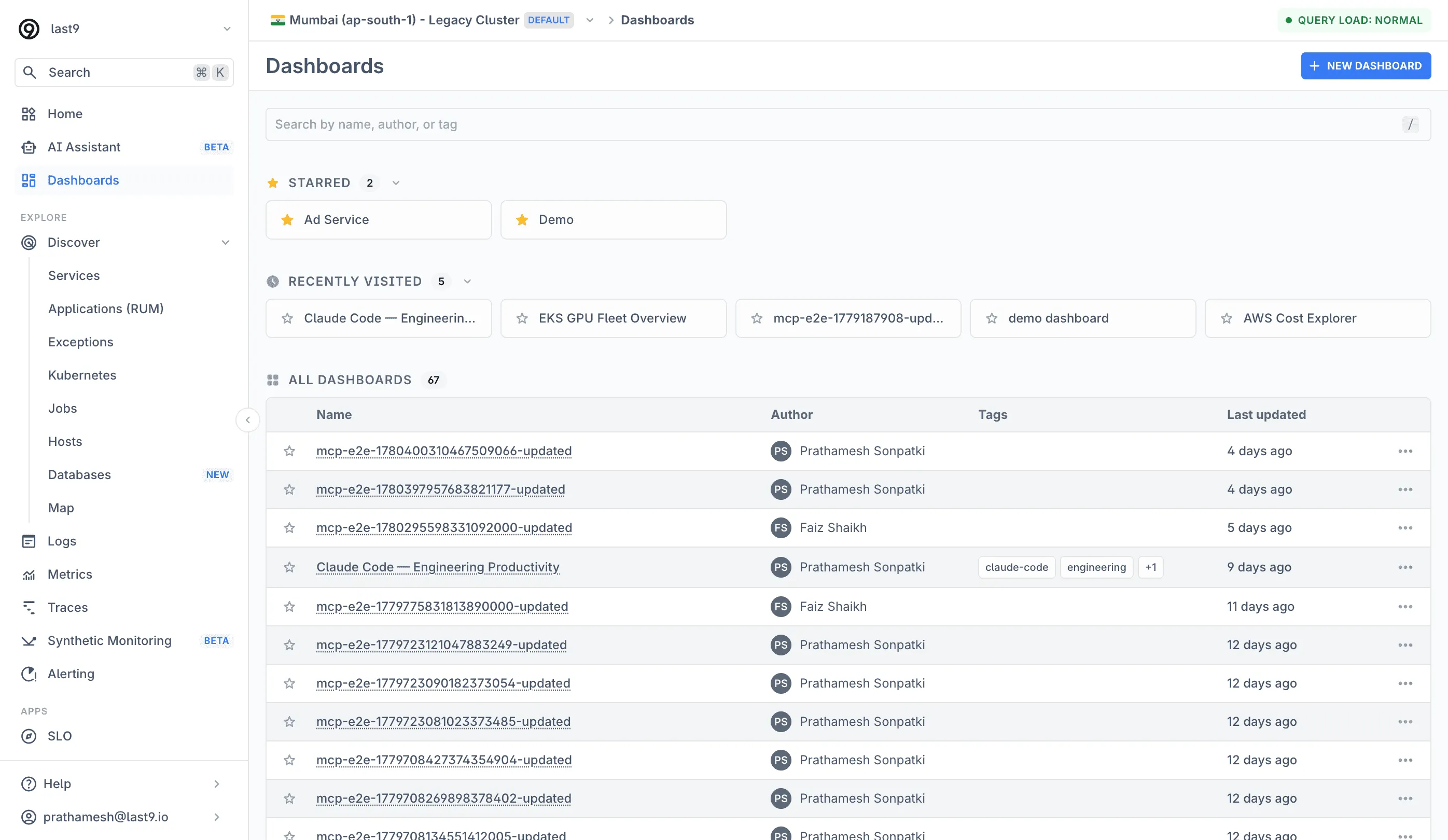
As the dashboard count grows, the list page keeps the ones you actually use within reach.
Starred Dashboards
Star a dashboard from the list or from the star button in the dashboard header. Starred dashboards appear as a collapsible card grid above the table. Stars are saved to your user profile, so they follow you across devices.
Recently Visited
The list tracks your last 8 visited dashboards per organization and shows them as a collapsible card grid below the starred section — no setup needed.
Tags
Add tags to a dashboard when saving it, or later via Edit in the dashboard’s actions menu. Tags render as chips in the list, and clicking a tag adds it as a search filter — one click to see every dashboard tagged production or kafka.
Search
The search box matches dashboard names, authors, and tags. Active search filters persist in the URL as query params, so a filtered view survives refresh and can be shared as a link.
Share Dashboards
Share dashboards with team members or external stakeholders through view-only links. Recipients do not need a Last9 account, and they cannot edit the dashboard.
Shared links require a password by default. A link keeps the dashboard variables selected when you create it.
Create a Shared Link
- Open the dashboard you want to share
- Click the Share button and select the Share Publicly tab
- Pick a Valid For duration —
3 Hours,6 Hours(default),12 Hours,1 Day,2 Days, or3 Days. Organization admins can also pick Forever - Optionally enter email addresses in Notify via Email to send recipients the link
- Leave Require a password to view this dashboard selected. Clear it only if you need a public link — anyone with the URL can then open the dashboard
- If you picked Forever, tick the acknowledgement that the link won’t expire and must be manually revoked
- Click Share Dashboard to generate the link
You need permission to share dashboards. If Share Dashboard is disabled, ask an organization admin to update your access.
The validity period begins when the link is created. When it ends, the link stops working. A Forever link remains active until the share creator or an organization admin revokes it.
Share a Password-Protected Link
Last9 generates the password when you create the link. The success screen shows the link and the password in separate fields.
Click Copy Link and Copy Password before you leave the screen. You cannot view the password again. If you lose it, reset the password from Active Shares.
If you entered recipient email addresses, the notification email contains the link but not the password. Send the password separately through an appropriate channel. Recipients can also ask the sender for it.
Open a Password-Protected Link
- Open the shared link
- Enter the password provided by the sender
- Click View
After successful verification, access lasts for the shorter of:
- The remaining validity of the shared link
- 24 hours in the current browser session
Closing the browser session, resetting the password, or reaching the 24-hour limit asks the recipient for the password again. An expired or revoked link is unavailable.
Manage Active Shares
Open the Share dialog and select Active Shares to review links created for the dashboard. Each entry identifies its validity, creation time, link type, and notified recipients.
Organization admins can manage any share. Other users can manage only the shares they created.
Reset a Password
For a protected link, click Reset Password to generate a new password. The share URL stays the same, and Last9 shows the new password once.
Resetting immediately invalidates the old password and existing browser sessions. Anyone currently viewing the dashboard loses access on their next request and must enter the new password. Last9 does not email the new password, so send it to recipients separately.
Revoke a Shared Link
Click Revoke and confirm the action to disable a link immediately. Anyone currently viewing it loses access on their next request. Revocation cannot be undone, and Last9 does not notify recipients.
Embedded Dashboards
Embedding a dashboard in an external application is different from sharing a view-only link. Do not place a shared dashboard URL in an iframe or expose Last9 API credentials in browser code.
Last9 supports embedded dashboards through a support-assisted, token-authenticated integration. There is no self-serve setup UI. Contact support@last9.io with your organization, dashboard, target application, and required dashboard variables. Last9 Support will confirm whether the dashboard is eligible and provide the supported integration steps.
The integration keeps Last9 credentials on your application’s server and supplies short-lived dashboard access to the browser. Store credentials securely and rotate or revoke them when the integration is no longer required.
Manage Dashboards
Edit a Dashboard
- Edit panels: Click the ⋮ menu on any panel and select Edit to modify its query, visualization type, or configuration
- Rearrange panels: Drag panels to reposition them on the grid
- Resize panels: Use the resize handles at panel edges to adjust dimensions
Chart Interactions
- Zoom: Zoom in and out on any chart to focus on a spike or step back for context — without changing the dashboard’s time range
- Graph aggregation: Graph legends support
avgas a summary aggregation alongside the existing options, so a legend can show the average over the window instead of only last/max/min values - Change event markers: Hover a marker at the bottom of a panel to see what changed at that moment. See Change Events
Duplicate and Delete
- Duplicate: Create a copy of an existing dashboard to use as a starting point
- Delete: Remove a dashboard permanently from the dashboards list
Best Practices
Naming and organization:
- Use descriptive dashboard names that include the service or team (e.g., “API Gateway - Production”)
- Use Section panels to group related panels together
- Keep dashboards focused on a single service or workflow
Panel design:
- Place the most important metrics at the top of the dashboard
- Use Stat panels for key numbers and Timeseries panels for trends
- Apply consistent units across related panels
- Set meaningful thresholds on heatmaps and status history panels
Variables and filtering:
- Add environment and service variables to make dashboards reusable across teams
- Use dynamic (label-based) variables to automatically pick up new values from your data
- Name the service variable’s target
serviceorservice_nameso change event markers work - Enable multi-select on variables when users need to compare across dimensions
Performance:
- Avoid adding too many panels with overlapping queries to a single dashboard
- Use
$__rate_intervaland$__intervalto let queries adapt to the selected time range - For high-cardinality data, add filters to reduce the number of series returned
Troubleshooting
-
Change event markers don’t appear. Add a variable with Type set to Label and Target set to
serviceorservice_name— Static variables do not work. If one exists, check the toggle in the header (the hidden state persists in the URL) and confirm your events carry a matchingservice_name. See Change Events. -
A Label variable’s dropdown is empty. The label may not exist in the cluster the dashboard queries — the Source dropdown lists the names actually present, so one typed from memory may not resolve. Otherwise clear Match, which may be narrowing the list to nothing.
-
The recipient did not receive the share email. The link stays active even if the email fails. Confirm the address and ask the recipient to check spam. Otherwise copy the link and send it yourself, with the password in a separate message.
-
The password is rejected. Confirm that the recipient has the latest password. If the password was lost, the share creator or an organization admin can reset it from Active Shares.
Please get in touch with us on Discord or Email if you have any questions.