
Product
Acknowledge Alerts
Record who owns a firing alert in the Last9 Alert Monitor. Acknowledge an alert, Acknowledge & mute it, reassign it, or release it.
An alert shows its state, but it does not show who responds to it. Acknowledge an alert to become its owner. The Alert Monitor then shows your name on the alert, so your team knows who responds to it.
Acknowledgement is available on every firing alert rule in the Alert Monitor.
Acknowledge an Alert
You can acknowledge an alert from two places:
- The alert row — open the actions menu at the end of the row, then select Acknowledge.
- The alert details view — select the Acknowledge chip in the header.
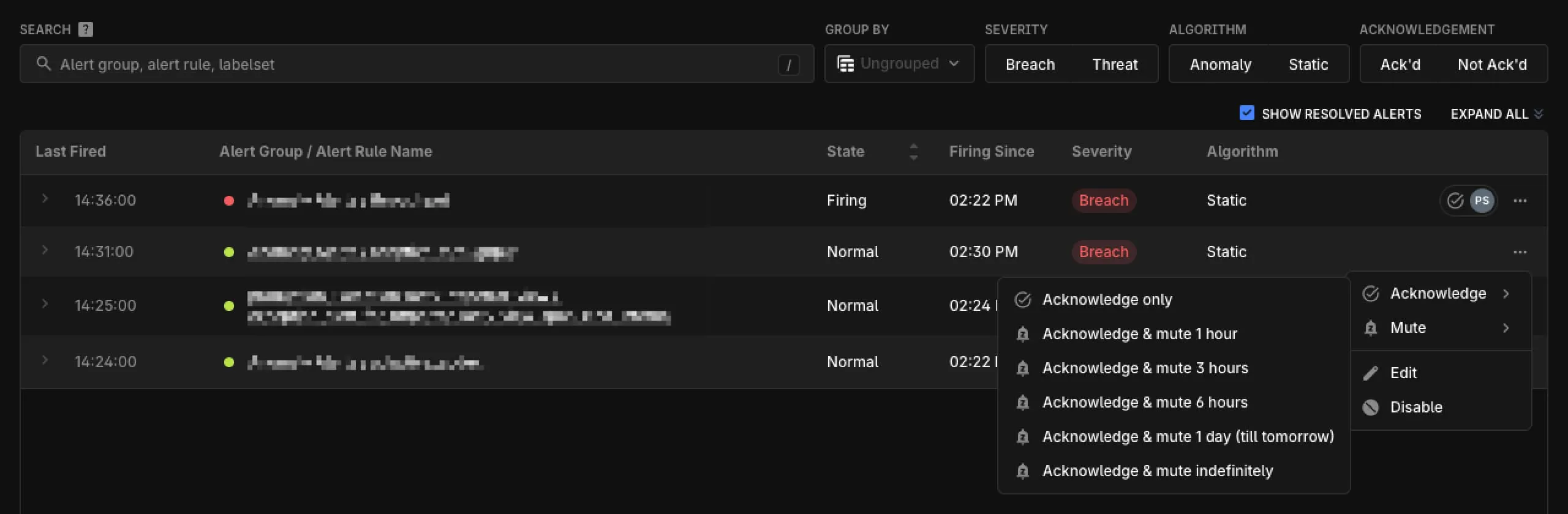
Both places give you the same options:
| Option | Result |
|---|---|
| Acknowledge only | You become the owner. The notifications continue. |
| Acknowledge & mute 1 hour | You become the owner. The alert rule is muted for 1 hour. |
| Acknowledge & mute 3 hours | You become the owner. The alert rule is muted for 3 hours. |
| Acknowledge & mute 6 hours | You become the owner. The alert rule is muted for 6 hours. |
| Acknowledge & mute 1 day (till tomorrow) | You become the owner. The alert rule is muted until tomorrow. |
| Acknowledge & mute indefinitely | You become the owner. The alert rule is muted until someone unmutes it. |
After you acknowledge an alert, the owner appears in every place the alert appears:
- The alert row shows an owner avatar with the initials of the owner.
- The alert details header shows Ack’d by name, or Ack’d and muted by name when the acknowledgement includes a mute.
- Hovering over either one shows the full name of the owner, their email address, and when they acknowledged the alert. For a mute, it also shows when the mute ends.
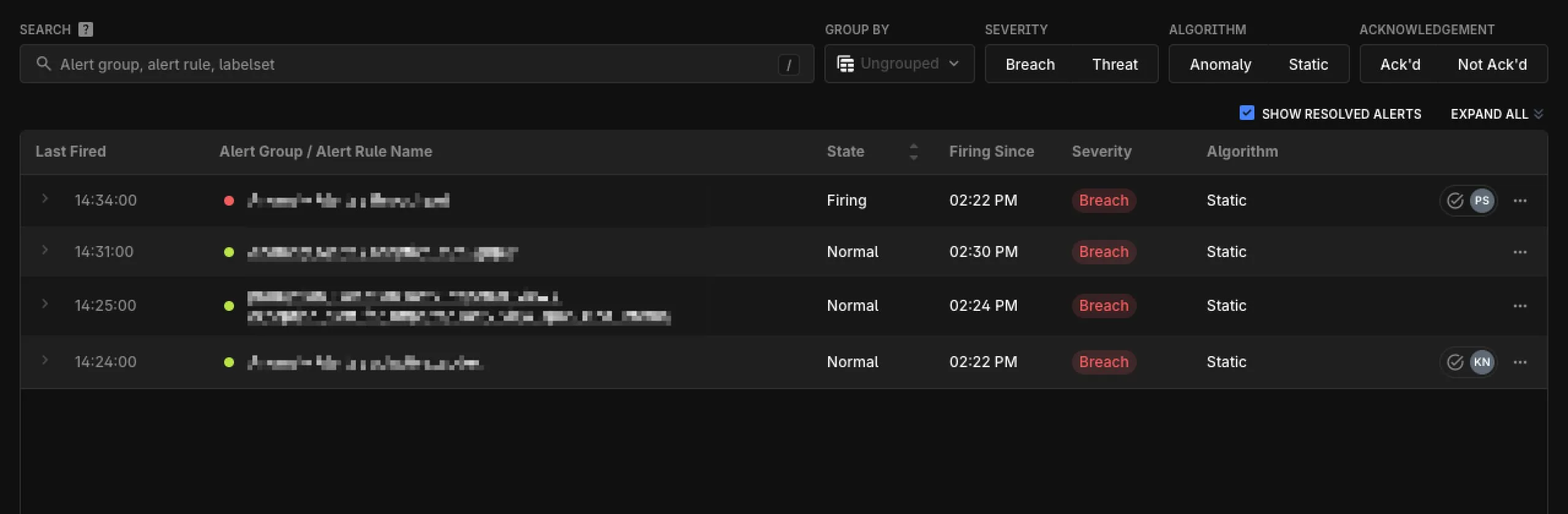
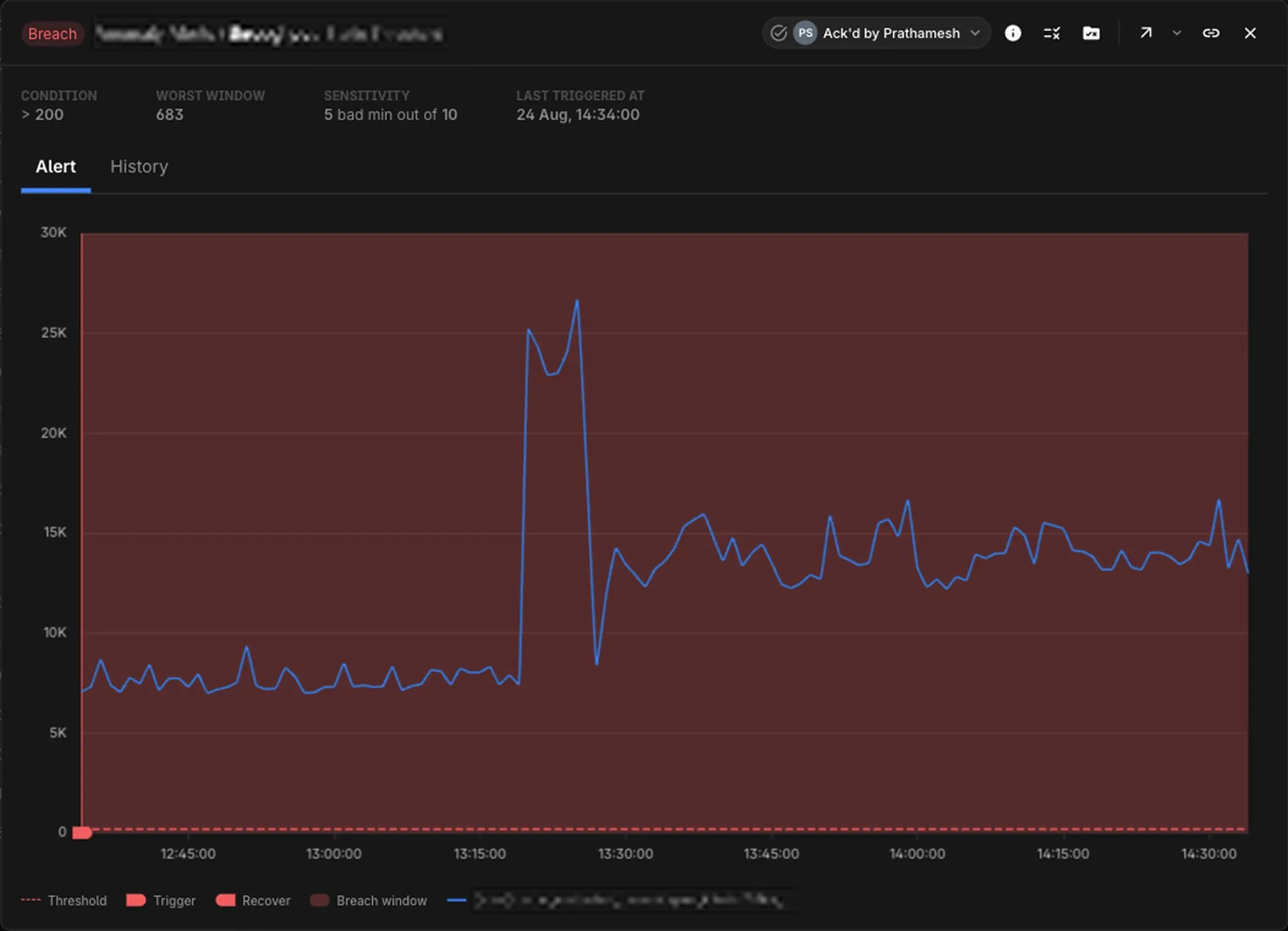
One person owns an alert rule at a time. If someone else acknowledges the alert first, your Acknowledge control is replaced by their ownership chip.
What an Acknowledgement Covers
An acknowledgement applies to the alert rule, not to a single timeseries. Each labelset that fires under the rule shares the same acknowledgement, so the owner appears on the rule row and not on each labelset. A mute also applies at rule level, so Acknowledge & mute and the acknowledgement have the same scope.
An acknowledgement continues while the alert fires. It ends when one of these conditions is true:
- The alert resolves.
- The owner or an Admin releases the acknowledgement with Unacknowledge.
- Someone reassigns the alert to a different owner.
- The owner is no longer an eligible owner. Refer to Automatic Release.
Release an Acknowledgement
To release the ownership, select Unacknowledge from the same menu. The alert becomes unacknowledged, and any Editor or Admin can then acknowledge it.
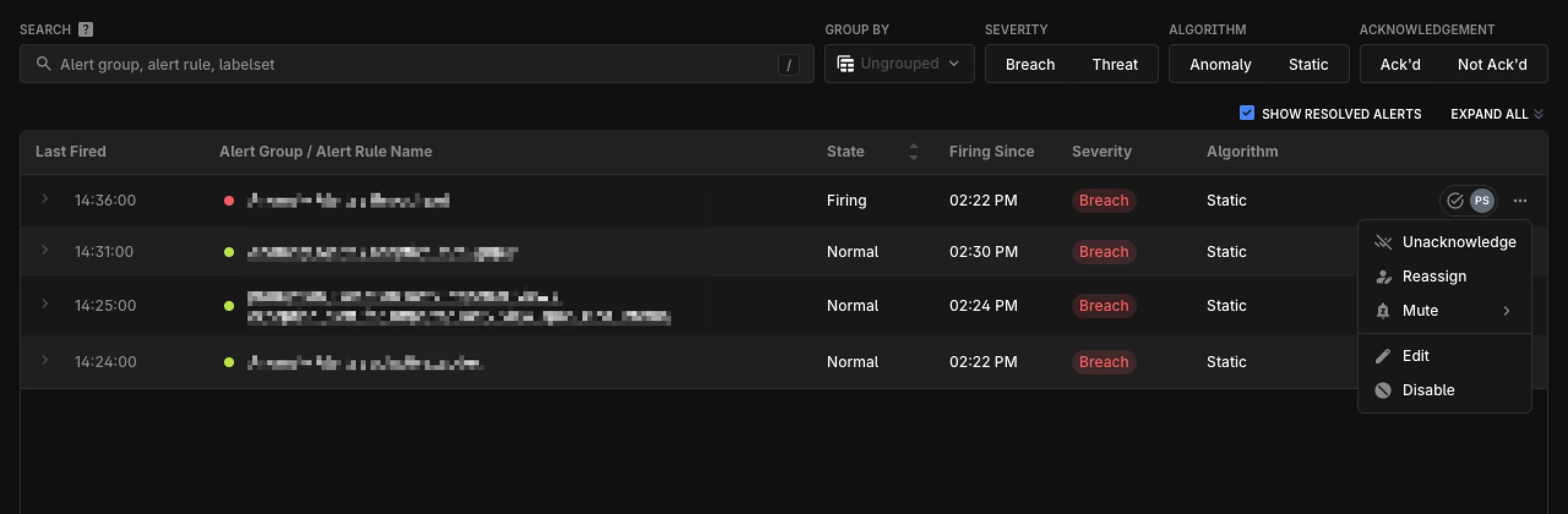
Only the current owner or an Admin can release an acknowledgement. If an Admin releases someone else’s acknowledgement, Last9 asks for a confirmation first, which prevents an accidental release.
If you used Acknowledge & mute, a release also unmutes the alert rule. If you muted the alert rule separately, or if you muted its Alert Group, the alert rule stays muted and a release does not unmute it.
Reassign an Alert
To give the alert to someone else, select Reassign, then pick them from the list. Last9 replaces your name with the name of the new owner in every place the alert appears.
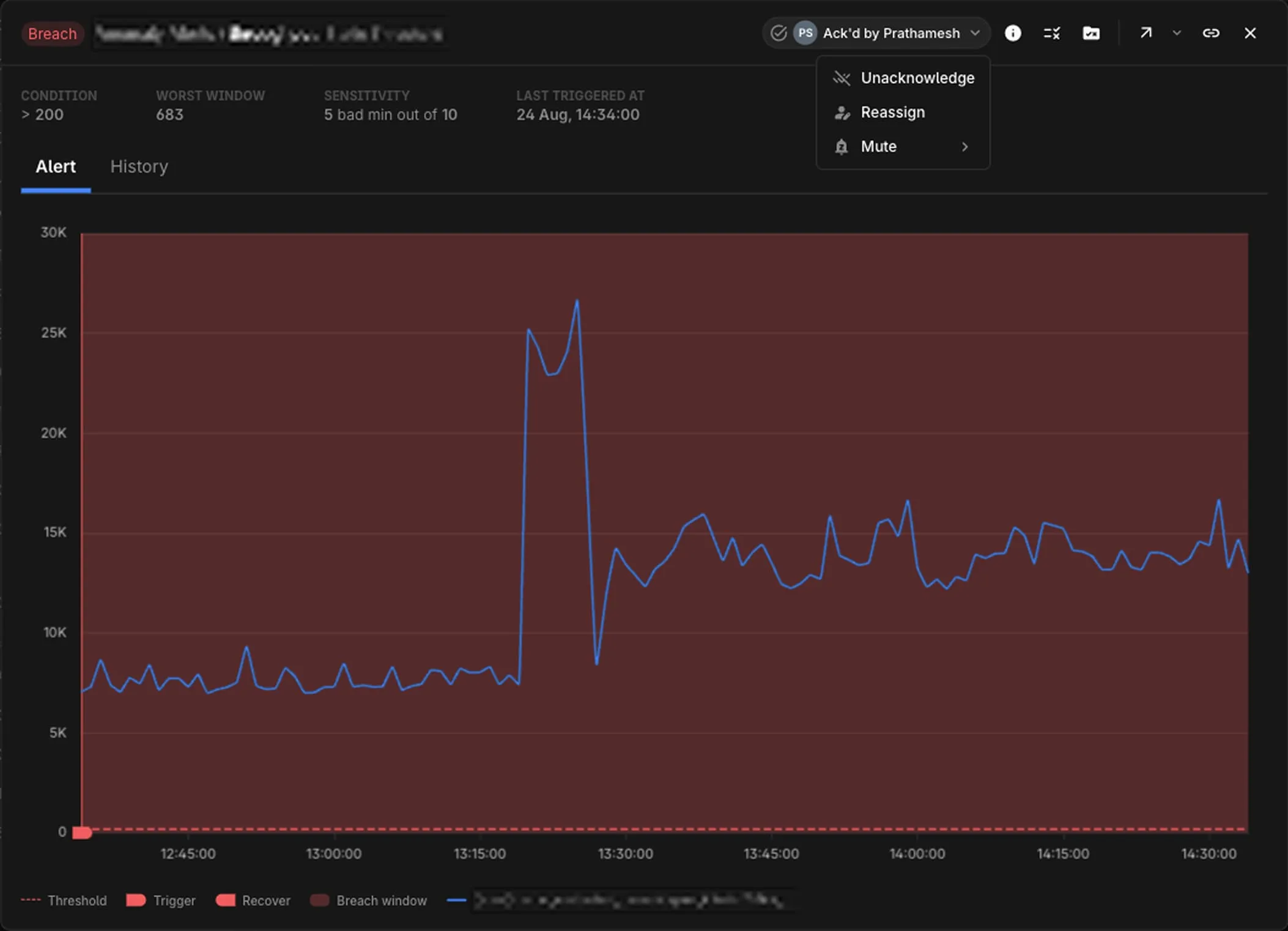
Only the current owner or an Admin can reassign an alert. If an Admin reassigns someone else’s alert, Last9 asks for a confirmation first.
The list shows the active Editors and Admins in your organization. A Viewer cannot own an alert, so the list omits Viewers, and the current owner.
Permissions
An acknowledgement follows your organization role:
| Capability | Viewer | Editor | Admin |
|---|---|---|---|
| See the owner of an alert | ✅ | ✅ | ✅ |
| Acknowledge an alert | ❌¹ | ✅ | ✅ |
| Release or reassign your own alert | ❌¹ | ✅ | ✅ |
| Release or reassign someone else’s alert | ❌ | ❌ | ✅ |
| Become the owner of an alert | ❌¹ | ✅ | ✅ |
¹ By default. See the Viewer acknowledgement note below — enabling that capability changes these rows for Viewers.
The Acknowledge & mute options, and the Mute options beside them, also need permission to configure the notification channels. Without that permission, only Acknowledge only is available.
Filter by Acknowledgement
The Alert Monitor has an Acknowledgement filter with two values, Ack’d and Not Ack’d. Use it to separate the alerts that have an owner from the alerts that still wait for one. The filter is reflected in the URL, so you can share a filtered view.
Automatic Release
An acknowledgement expires when the alert resolves. While the alert is still firing, the acknowledgement does not expire on its own — it stays with its owner until one of the conditions below is met. You can also release or reassign it at any time.
An acknowledgement is held by a person, so Last9 releases the acknowledgements of a user when that user can no longer respond. Last9 releases all the acknowledgements of a user in the organization when you:
- change the user to the Viewer role,
- remove the role of the user in the organization, or
- deactivate the user, or remove the user from the organization.
Those alerts become unacknowledged, and any Editor or Admin can then acknowledge them.
Audit Trail
Last9 records each acknowledgement, reassignment, and release in the Audit Trail, with the alert rule and its alert group. Use it to find who owned an alert at a given time.
Troubleshooting
-
“Acknowledged. Rule not muted — the alert group is already muted.”
Your acknowledgement is saved, but the rule is not muted because its Alert Group is already muted. The group mute already stops the notifications, so no other action is necessary.
-
“Acknowledgement released. Rule could not be unmuted — unmute it from the rule menu.”
You released the ownership, but the alert rule stays muted. To unmute the rule, use the actions menu of the rule.
-
The Acknowledge option is not available.
Your role cannot acknowledge alerts — ask an Admin for the Editor role, or ask an Admin to enable the
viewer_alert_acknowledgement_enabledorg capability if you need Viewer-level acknowledgement access. If only the mute durations are unavailable, ask an Admin for permission to configure the notification channels.
Please get in touch with us on Discord or Email if you have any questions.