
Product
Alert Rules and Groups
Browse, filter, and manage Alert Rules and Alert Groups from a single rules-first page.
An Alert Rule evaluates a query against a condition on a schedule, and generates an alert when the condition is met. Rules are organized into Alert Groups — containers that share a data source and the notification settings their rules use.
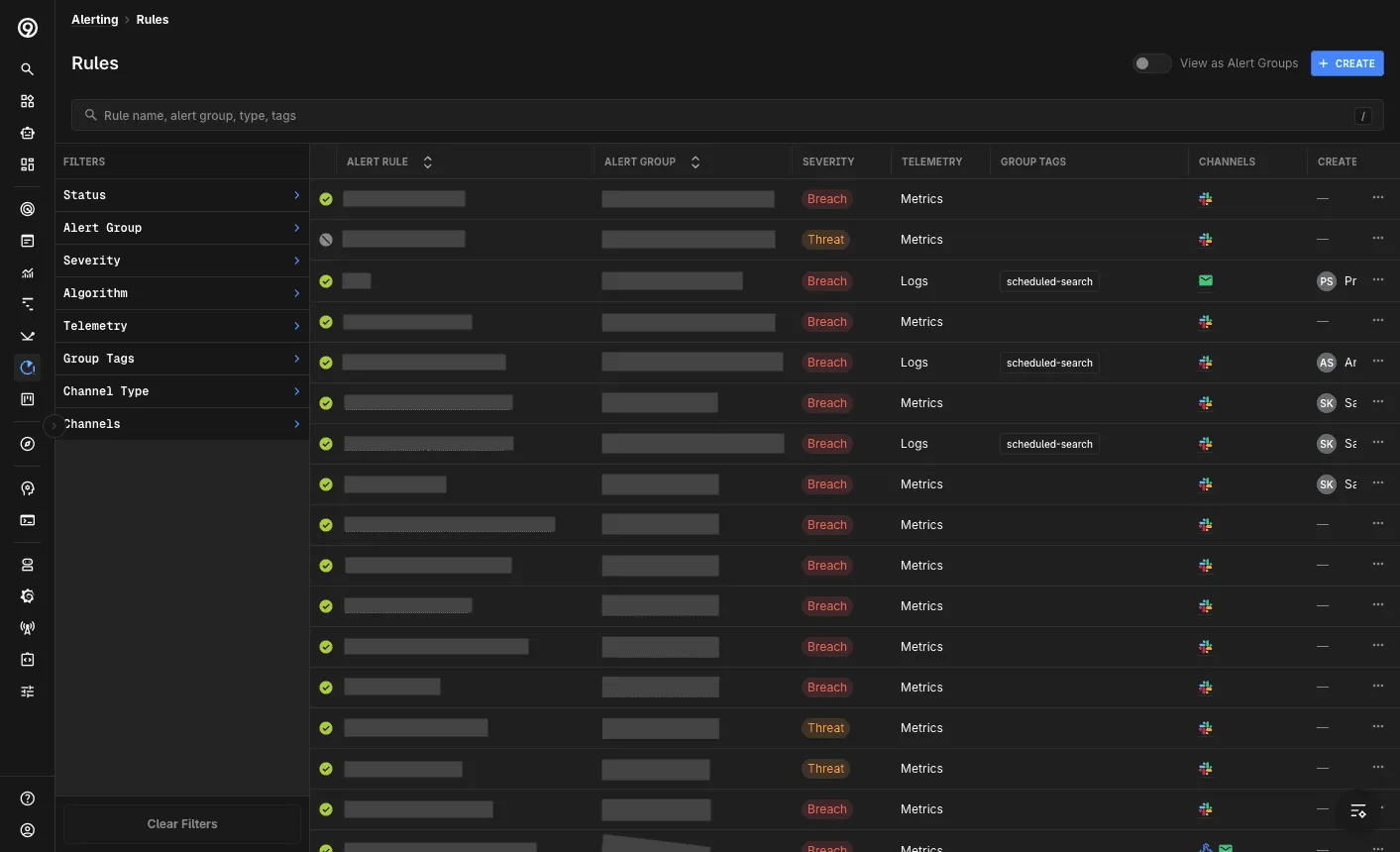
The Rules page lists every Alert Rule in your org in a single table, so you can see what is configured, what is firing, and who owns it.
Alert Rules View
The default view is rules-first: each row is a single Alert Rule, showing its Alert Rule name, the Alert Group it belongs to, Severity, Telemetry type, Channels, and Created by. Long names truncate with a tooltip, and your search term is highlighted in the name cell.
Filtering
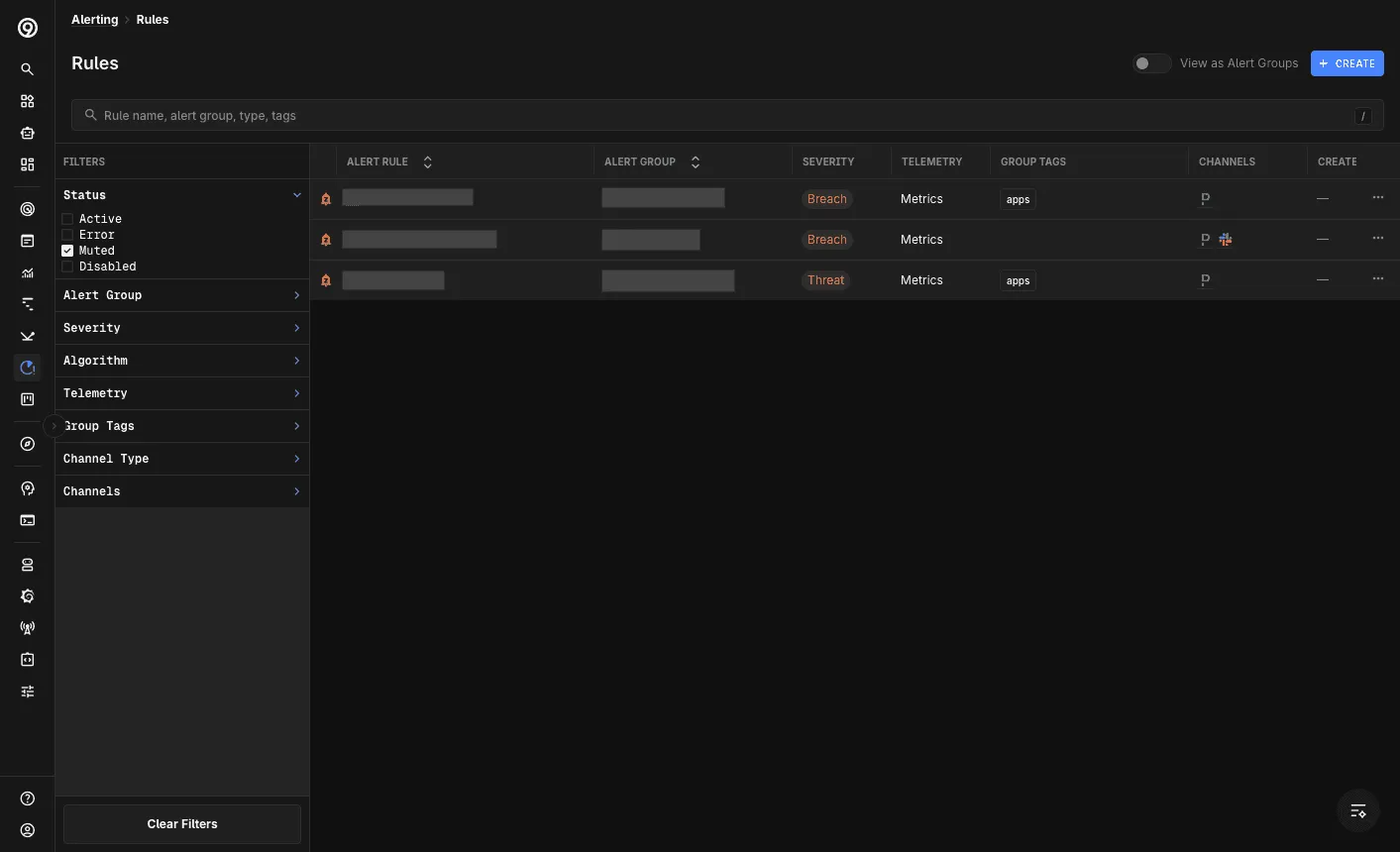
The filter panel on the left narrows the table by Status, Alert Group, Severity, Algorithm, Telemetry, Group Tags, Channel Type, and Channels. Each filter defaults to all-checked; hover a value to Only it or re-select All. Use Clear Filters to reset.
Row Actions
Each rule’s actions menu offers:
- Edit — open the rule in the Alert Rule editor.
- Duplicate — create a copy of the rule.
- Disable — stop the rule from evaluating and notifying.
- Delete — permanently remove the rule.
Disable and Delete are distinct, separately-confirmed actions, and are available for system-managed and deprecated-algorithm rules as well.
Creating a Rule
Click Create to open the Alert Rule editor, where you choose the telemetry type, build the query, set the condition, and preview when the rule would fire.
Alert Groups View
An Alert Group is an organizational container for related Alert Rules. A group categorizes rules (for example, node alerts or pod alerts), shares a data source, and owns the Notification Channels and notification settings that its rules use.
Toggle View as Alert Groups in the top right to switch from the rules view to a grouped view, where each row is a group with its Telemetry type, No. of Rules (with a count of any disabled rules), Group Tags, Channels, and Created by.
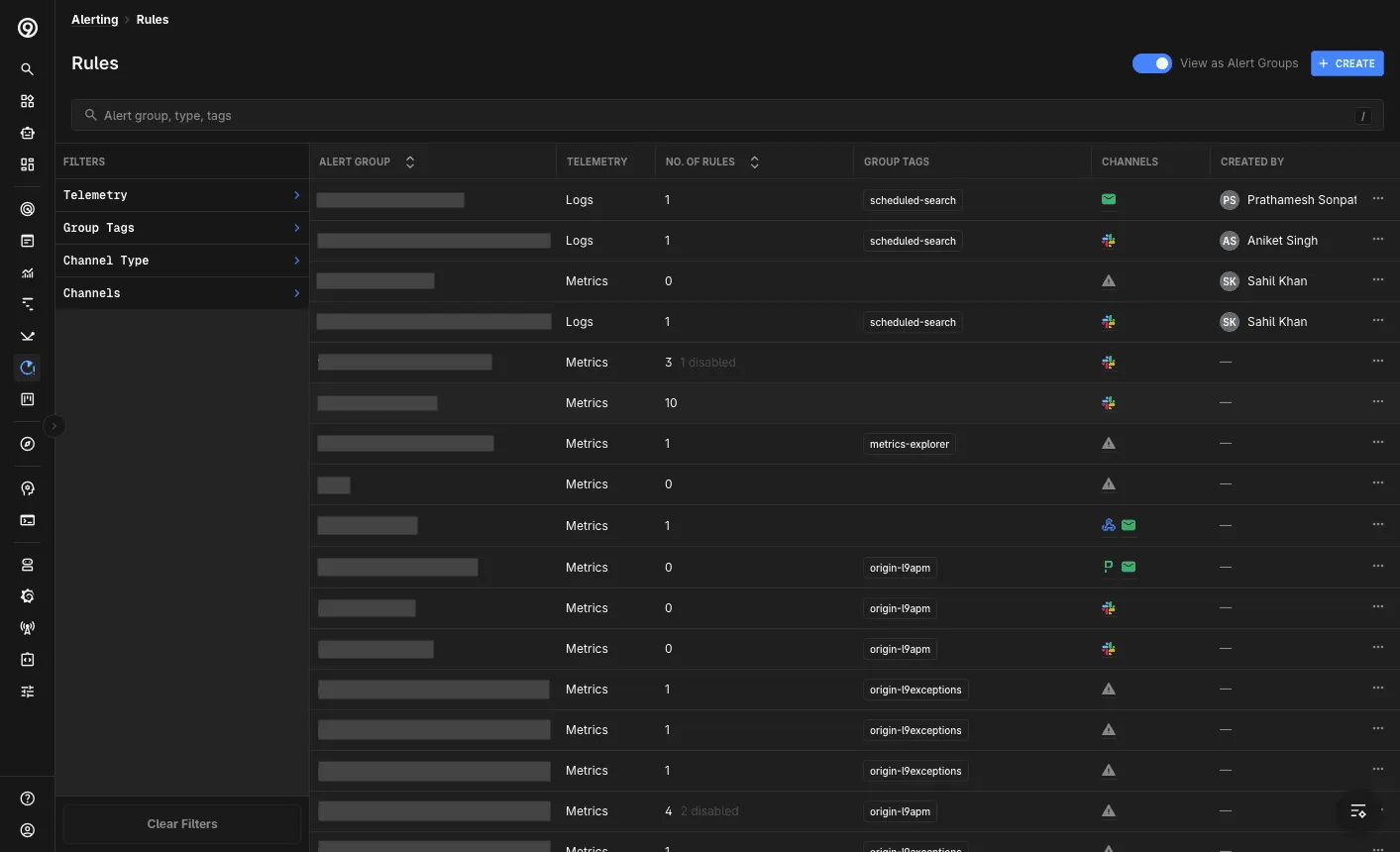
This view filters by the group-level facets only — Telemetry, Group Tags, Channel Type, and Channels. From a group’s actions menu you can also duplicate or delete it; deleting a group removes all of its Alert Rules and the alerts they generated.
Select a group to open its Settings modal, organized into four tabs.
General
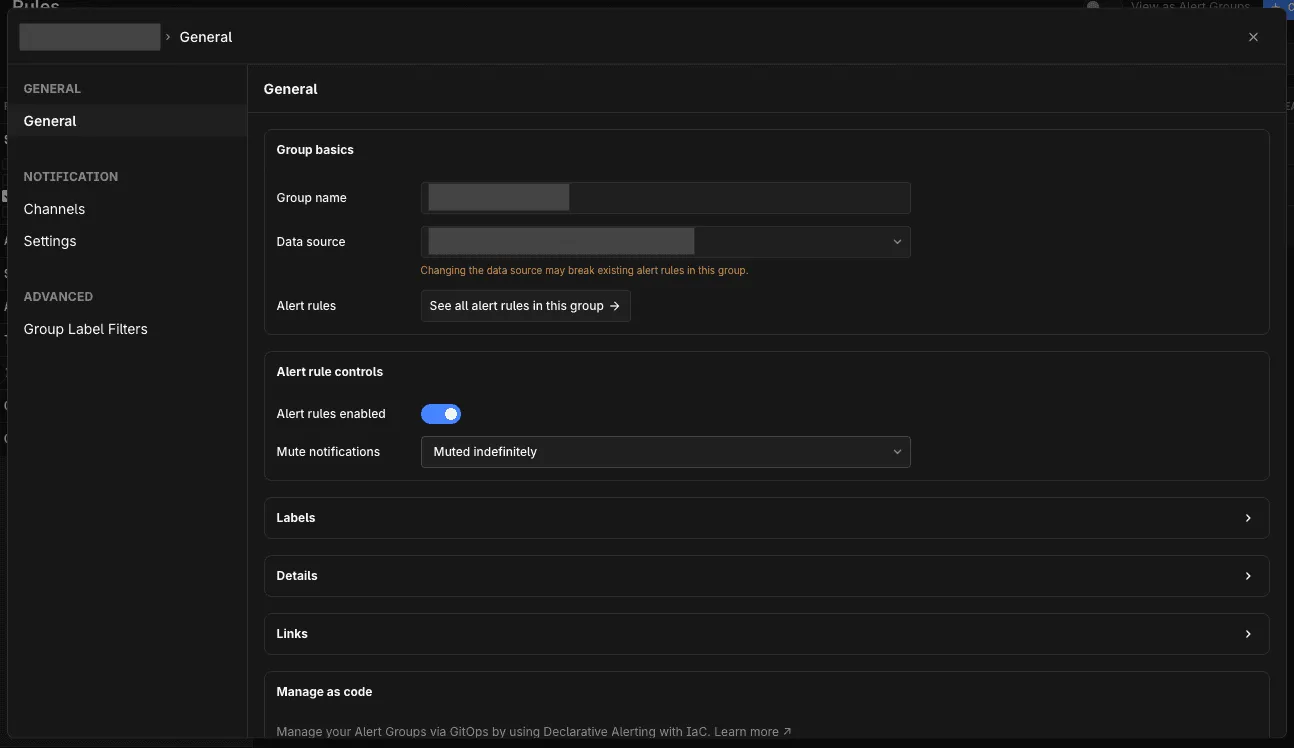
- Group basics — the group name, its Data source (changing the data source may break existing rules in the group), and a See all alert rules in this group shortcut.
- Alert rule controls — Alert rules enabled to turn the group’s rules on or off, and Mute notifications to snooze the group (for example, Muted indefinitely).
- Labels, Details, and Links — collapsible cards for adding metadata, descriptive details, and external links (runbooks, dashboards, repos) to the group.
- Manage as code — groups can also be managed via GitOps with Declarative Alerting via IaC.
Channels
Channels are configured per severity — separately for Threat and Breach notifications — and apply to every rule in the group.
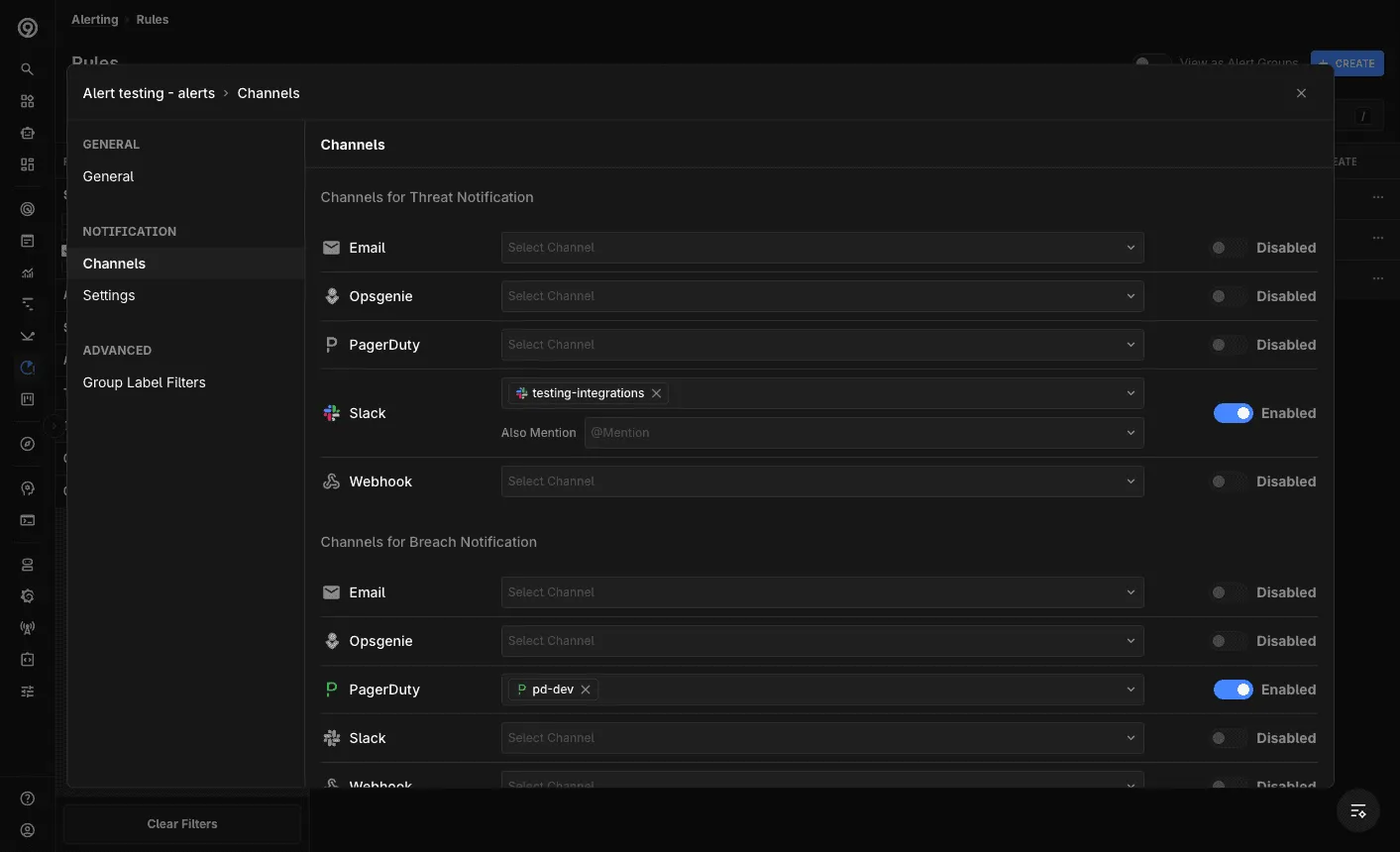
For each channel type (Email, Opsgenie, PagerDuty, Slack, Webhook), select a configured Notification Channel and toggle it on. For Slack, you can also add an Also Mention to tag a person or group. Ensure at least one Notification Channel is configured before assigning it here.
Settings
The Settings tab controls how often Last9 re-notifies your channels while an alert stays firing.
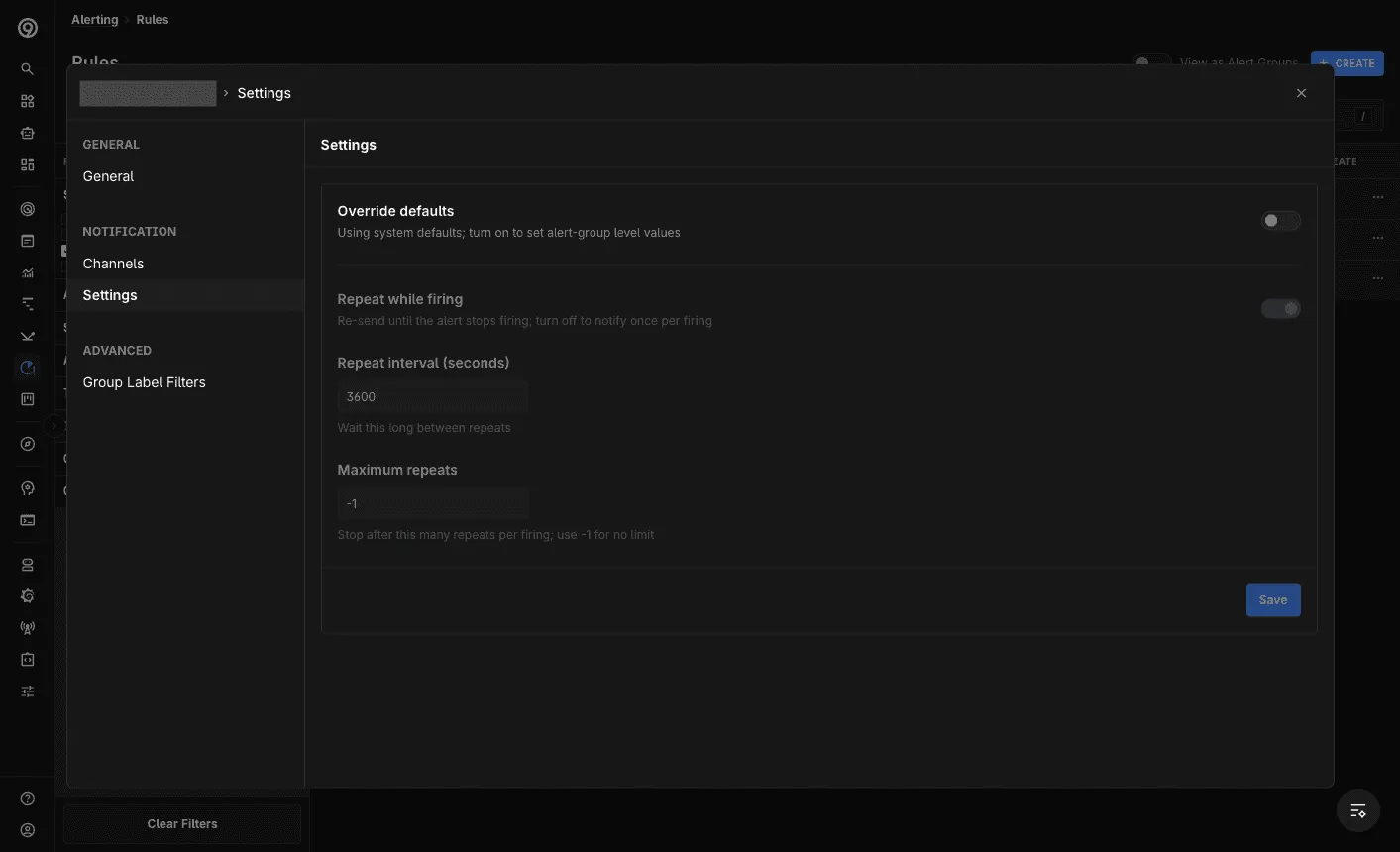
- Override defaults — by default the group uses system defaults; turn this on to set group-level values.
- Repeat while firing — re-send notifications until the alert stops firing; turn off to notify once per firing.
- Repeat interval (seconds) — how long to wait between repeats.
- Maximum repeats — stop after this many repeats per firing; use
-1for no limit.
See Repeat Notification Interval for details.
Group Label Filters
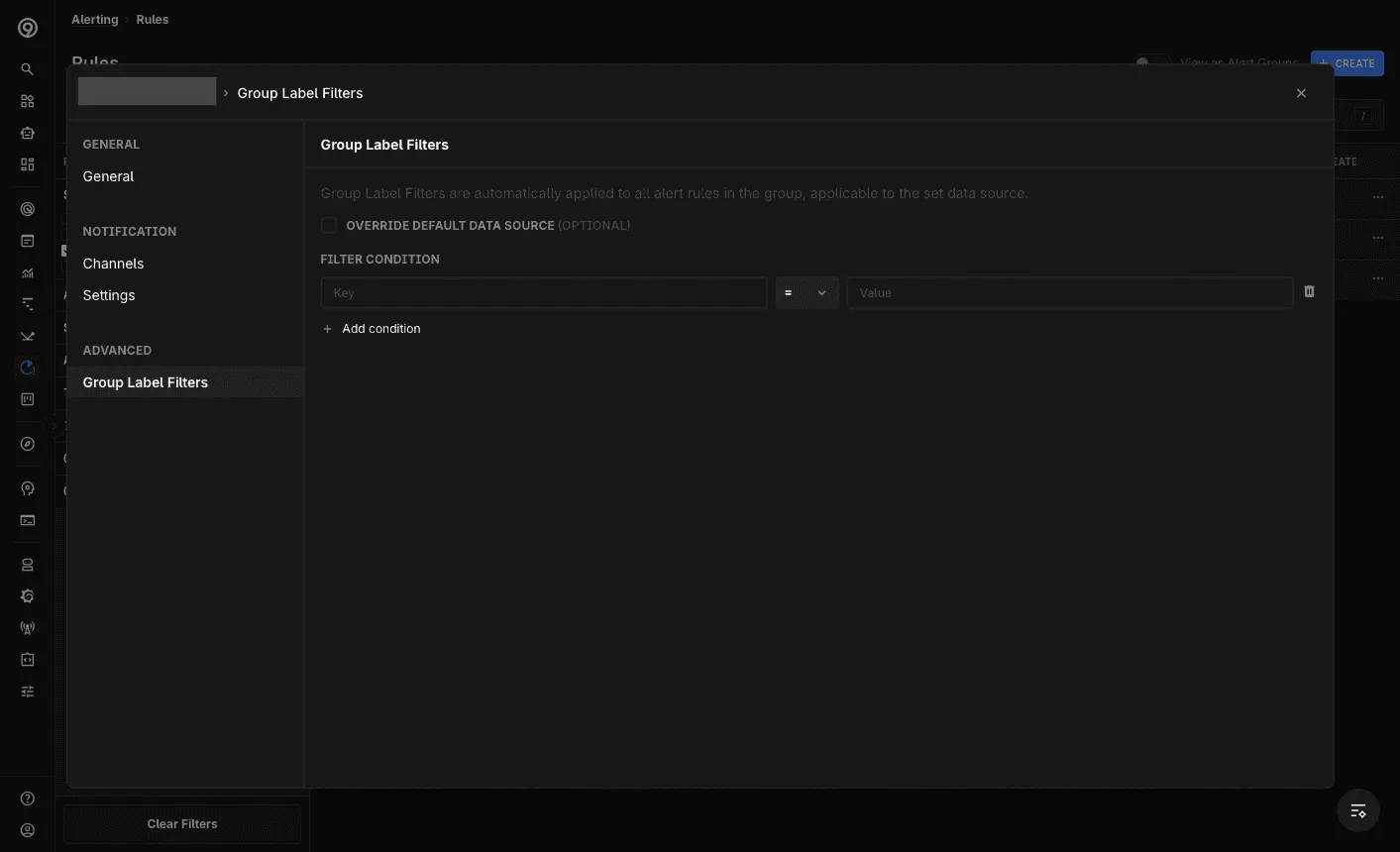
Group Label Filters are available for metrics Alert Groups only. They are automatically applied to all rules in the group for the set data source. Optionally override the default data source, then add one or more filter conditions (key, operator, value).
Troubleshooting
Please get in touch with us on Discord or Email if you have any questions.