
Receive Alert Notifications via Telegram
Setup Telegram integration and receive alert notifications from Last9.
Getting started
Last9 can send alert notifications and resolutions to Telegram chats, groups, or channels. This document provides step-by-step instructions on how to set up Telegram integration with Last9 and start receiving alert notifications.
Prerequisites
- A Telegram account
- A Telegram Bot (created via BotFather)
- The Chat ID of the group, channel, or private chat where you want to receive alerts
Setting up a Telegram Bot
-
Open Telegram and search for @BotFather
-
Start a conversation and send
/newbot -
Follow the prompts to:
- Choose a name for your bot (e.g., “Last9 Alerts Bot”)
- Choose a username for your bot (must end in
bot, e.g.,last9_alerts_bot)
-
BotFather will provide you with a Bot Token. It looks like:
123456789:ABCdefGHIjklMNOpqrsTUVwxyz -
Save this token securely - you’ll need it for the webhook URL
Getting your Chat ID
For a private chat with the bot:
- Start a conversation with your bot
- Send any message to the bot
- Visit:
https://api.telegram.org/bot<YOUR_BOT_TOKEN>/getUpdates - Find the
chat.idin the response
For a group:
- Add your bot to the group
- Send a message in the group mentioning the bot
- Visit:
https://api.telegram.org/bot<YOUR_BOT_TOKEN>/getUpdates - Find the
chat.id(group IDs are negative numbers like-1001234567890)
For a channel:
- Add your bot as an administrator to the channel
- Forward a message from the channel to @userinfobot
- The bot will reply with the channel ID
Setting up a notification channel in Last9
-
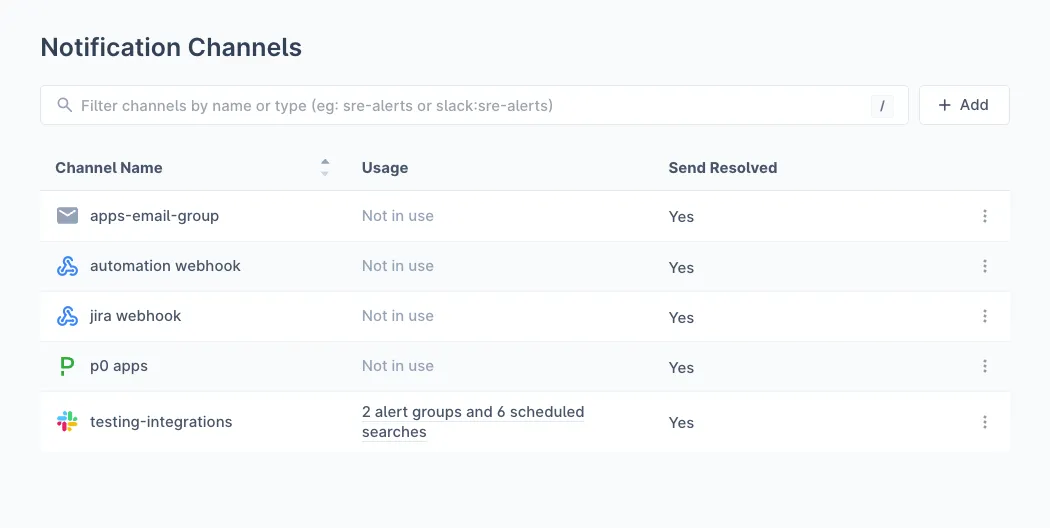
In Notification Channels, click Add to create a new channel
-
Provide the following details:
- Channel Name: A descriptive name to easily identify the channel (e.g., “Telegram Production Alerts”)
- Channel: Select Webhook from the dropdown
- Webhook URL: Enter your Telegram Bot API URL:
https://api.telegram.org/bot<YOUR_BOT_TOKEN>/sendMessage
- Headers: Add the following header:
Key Value TELEGRAM_CHAT_IDYour chat/group/channel ID (e.g., -1001234567890) - Send Resolved: Enable this option if you want to be notified when an alert has been resolved

-
Click Save to enable the channel
The TELEGRAM_CHAT_ID header is required. Without it, Last9 cannot send messages to your Telegram chat.
Assigning a notification channel to an alert group
-
Navigate to your Alert Group in Alert Studio
-
Click on the notification channel icon to configure notifications
-
Select your Telegram channel from the dropdown
Telegram Notification Format
Last9 sends notifications to Telegram using HTML formatting. Notifications include:
| Field | Description |
|---|---|
| Event Type | TRIGGER or RESOLVED indicator with emoji |
| Summary | Alert title and description |
| Severity | BREACH (critical) or THREAT (warning) with color indicators |
| Component | The affected component or service |
| Class | Type of alert (e.g., Static Threshold, SLO Breach) |
| Timestamp | When the alert was triggered |
| Custom Details | Additional context like service, environment, error rates |
| Inspect Link | Direct link to view the alert in Last9 |
Severity Indicators
| Severity | Icon | Description |
|---|---|---|
| Breach | Red circle | Critical alerts requiring immediate attention |
| Threat | Orange circle | Warning alerts indicating potential issues |
| Resolved | Checkmark | Alert has been resolved |
Using Terraform
You can also create the Telegram notification channel using the Last9 Terraform Provider:
resource "last9_notification_channel" "telegram" {  name          = "telegram-production-alerts"  type          = "webhook"  destination   = "https://api.telegram.org/bot<YOUR_BOT_TOKEN>/sendMessage"  send_resolved = true
  headers = {    TELEGRAM_CHAT_ID = "-1001234567890"  }}
Troubleshooting
Notifications not appearing in Telegram
- Verify the bot token is correct
- Ensure the
TELEGRAM_CHAT_IDheader is set correctly - Check that the bot has permission to send messages:
- For groups: the bot must be a member of the group
- For channels: the bot must be an administrator
- Verify the chat ID is correct (groups/channels have negative IDs)
Bot not responding
- Make sure you haven’t blocked the bot
- For groups, ensure the bot has been added to the group
- Check if the bot token is still valid (tokens can be revoked via BotFather)
Messages truncated
Telegram has a 4096 character limit per message. If your alerts contain very long custom details, some content may be truncated.
Alternative header name
Last9 also accepts TELEGRAM_CHAT_ID_KEY as an alternative to TELEGRAM_CHAT_ID.
Please get in touch with us on Discord or Email if you have any questions.