
Receive Alert Notifications via Slack
Setup Slack integration and receive alert notifications from Last9.
Getting started
Last9 can send alert notifications and resolutions to Slack channels. This document provides step-by-step instructions on how to set up Slack integration with Last9 and start receiving alert notifications.
Setting up an Incoming Webhook in Slack
-
Navigate to Slack API Apps and click Create New App
-
Select From scratch and provide:
- App Name: A descriptive name (e.g., “Last9 Alerts”)
- Workspace: Select the workspace where you want to receive alerts
-
Click Create App
-
In your app settings, navigate to Incoming Webhooks in the left sidebar
-
Toggle Activate Incoming Webhooks to On
-
Click Add New Webhook to Workspace
-
Select the channel where you want alert notifications to be posted and click Allow
-
Copy the generated webhook URL. It will look like:
https://hooks.slack.com/services/T00000000/B00000000/XXXXXXXXXXXXXXXXXXXXXXXX
Setting up a notification channel in Last9
-
In Notification Channels, click Add to create a new channel
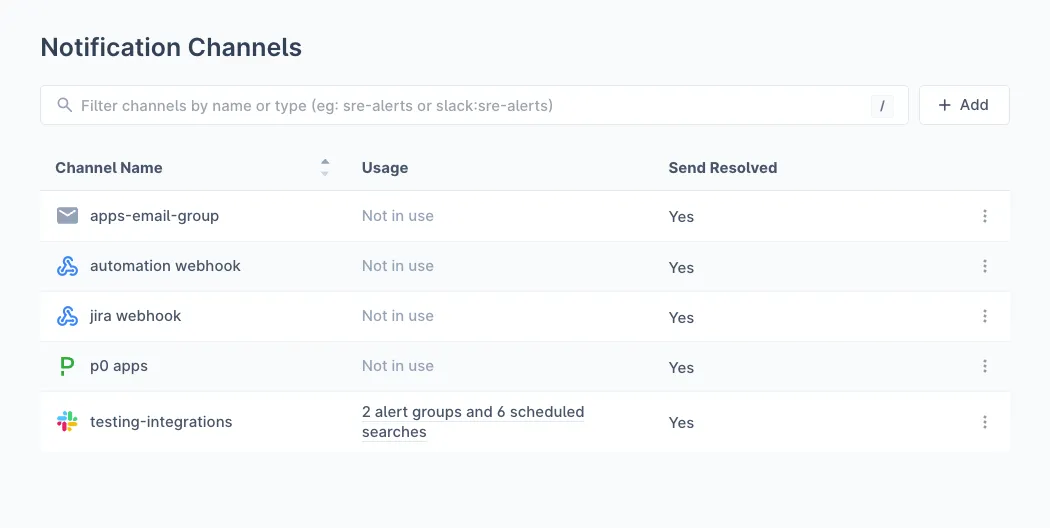
-
Provide the following details:
- Channel Name: A descriptive name to easily identify the channel (e.g., “Slack Production Alerts”)
- Channel: Select Slack from the dropdown
- Webhook URL: Paste the Slack webhook URL copied from the previous step
- Send Resolved: Enable this option if you want to be notified when an alert has been resolved
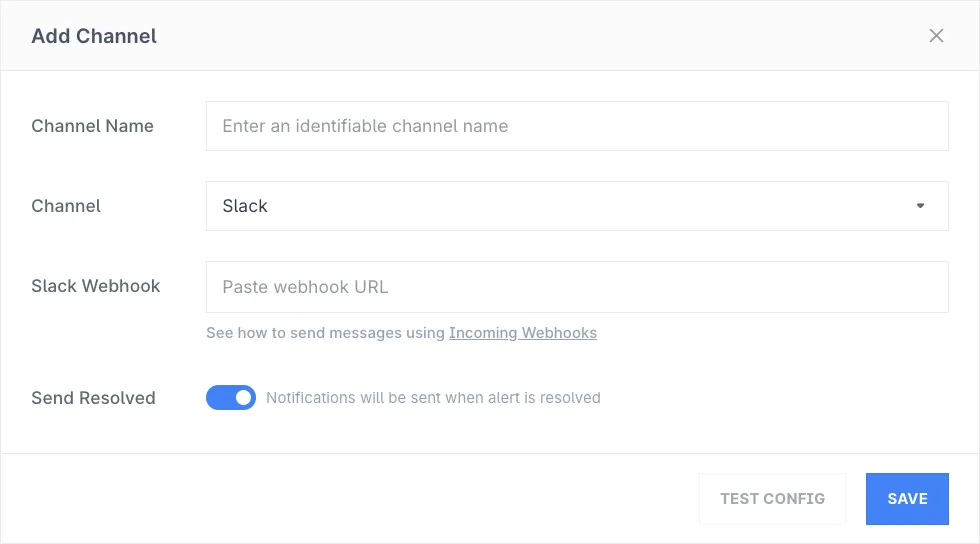
-
Click Test Config to send a test message to your Slack channel and verify the integration is working
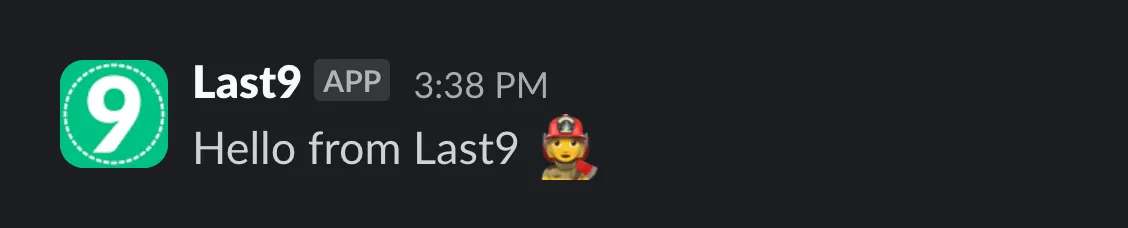
-
Click Save to enable the channel
Assigning a notification channel to an alert group
-
Navigate to your Alert Group in Alert Studio
-
Click on the notification channel icon to configure notifications
-
Select your Slack channel from the dropdown
Slack Notification Format
Last9 sends rich notifications to Slack that include:
| Field | Description |
|---|---|
| Event Type | TRIGGER or RESOLVED indicator |
| Summary | Alert title and description |
| Severity | BREACH (critical) or THREAT (warning) |
| Component | The affected component or service |
| Class | Type of alert (e.g., Static Threshold, SLO Breach) |
| Timestamp | When the alert was triggered |
| Custom Details | Additional context like service, environment, error rates |
| Dashboard Link | Direct link to view the alert in Last9 |
Using Terraform
You can also create the Slack notification channel using the Last9 Terraform Provider:
resource "last9_notification_channel" "slack" { name = "slack-production-alerts" type = "slack" destination = "https://hooks.slack.com/services/T00000000/B00000000/XXXXXXXXXXXXXXXXXXXXXXXX" send_resolved = true}Troubleshooting
Notifications not appearing in Slack
- Verify the webhook URL is correct and starts with
https://hooks.slack.com/services/ - Check that the Slack app is still installed in your workspace
- Ensure the channel selected for the webhook still exists
- Verify the app has permission to post to the channel
Test message not working
- Click Test Config to send a test message
- Check if the test message appears in your Slack channel
- If it doesn’t appear, verify the webhook URL is correct
Rate limiting
Slack has rate limits for incoming webhooks. If you’re sending a high volume of alerts, some messages may be delayed. Consider consolidating alerts using alert grouping in Last9.
Webhook URL expired or revoked
If your webhook stops working:
- Navigate to your Slack app settings
- Go to Incoming Webhooks
- Check if the webhook is still active
- If needed, create a new webhook and update the URL in Last9
Please get in touch with us on Discord or Email if you have any questions.