
Create Jira Issues from Alerts
Setup Jira integration to automatically create issues from Last9 alerts.
Getting started
Last9 can automatically create Jira issues when alerts are triggered. This document provides step-by-step instructions on how to set up Jira integration with Last9.
Prerequisites
- A Jira Cloud or Jira Data Center instance
- API token or credentials with permission to create issues
- Project key where issues should be created
Setting up Jira API Access
For Jira Cloud:
-
Log in to your Atlassian account at id.atlassian.com
-
Go to Security > API tokens
-
Click Create API token
-
Give it a descriptive label (e.g., “Last9 Integration”)
-
Copy the generated token
-
Your webhook URL will be:
https://your-domain.atlassian.net/rest/api/3/issue -
For authentication, you’ll need to base64 encode
email:api_token:echo -n "your-email@example.com:your-api-token" | base64
For Jira Data Center:
-
Generate a Personal Access Token (PAT) from your Jira profile
-
Your webhook URL will be:
https://your-jira-server.com/rest/api/2/issue
Setting up a notification channel in Last9
-
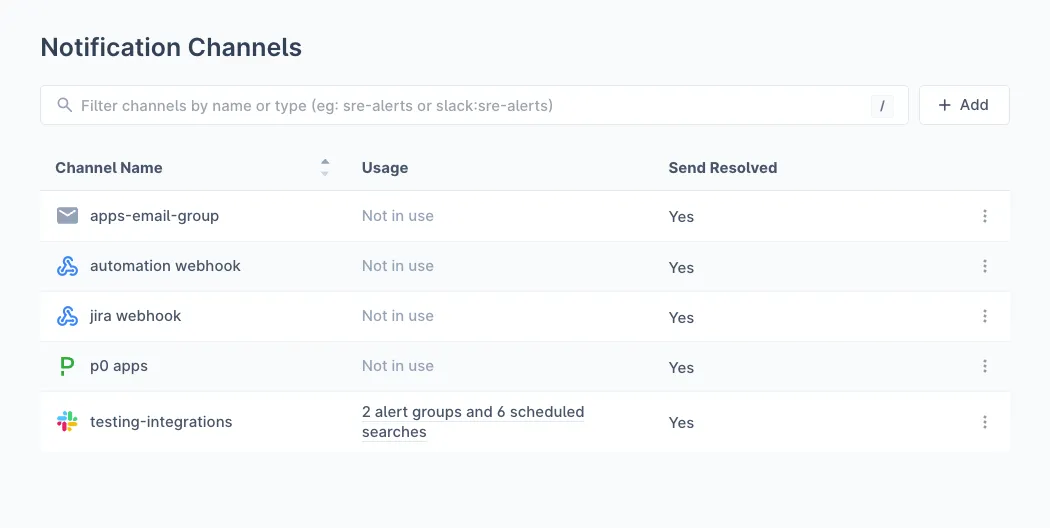
In Notification Channels, click Add to create a new channel
-
Provide the following details:
-
Channel Name: A descriptive name to easily identify the channel (e.g., “Jira Production Alerts”)
-
Channel: Select Webhook from the dropdown
-
Webhook URL: Enter your Jira API endpoint:
https://your-domain.atlassian.net/rest/api/3/issue -
Headers: Add the following headers:
Key Value Required AuthorizationBasic <base64-encoded-credentials>Yes Content-Typeapplication/jsonYes JIRA_PROJECT_NAME_KEYYour project key (e.g., ALERTS)Yes JIRA_PRIORITY_ENABLEDtrueto enable priority mappingOptional JIRA_PROJECT_RESOLUTION_STATUS_KEYTransition ID for resolved status Optional -
Send Resolved: Enable if you want resolution comments added to issues

-
-
Click Save to enable the channel
The JIRA_PROJECT_NAME_KEY header is required. Without it, Last9 cannot create issues in your Jira project.
Assigning a notification channel to an alert group
-
Navigate to your Alert Group in Alert Studio
-
Click on the notification channel icon to configure notifications
-
Select your Jira channel from the dropdown
Jira Issue Format
Last9 creates Jira issues with the following structure:
| Field | Description |
|---|---|
| Project | Set via JIRA_PROJECT_NAME_KEY header |
| Summary | Alert summary (max 255 characters) |
| Issue Type | Task |
| Description | ADF-formatted description with full alert details |
| Labels | last9-automated-alert + deduplication key |
| Priority | Mapped from severity (if JIRA_PRIORITY_ENABLED is true) |
Priority Mapping
When JIRA_PRIORITY_ENABLED is set to true:
| Last9 Severity | Jira Priority |
|---|---|
| Breach | Highest |
| Threat | High |
Issue Description
The issue description is formatted using Atlassian Document Format (ADF) and includes:
- Main Information: Top-level alert fields (summary, severity, timestamp)
- Custom Details: All custom details as labeled fields
- URLs: Clickable links to the Last9 dashboard
- Raw Data: Full JSON payload in a code block for debugging
Labels
Each issue is automatically labeled with:
last9-automated-alert- For easy filtering- Deduplication key - For tracking related alerts
Deduplication
Last9 only creates Jira issues for first-time alerts. Repeated triggers of the same alert will not create duplicate issues. This is controlled by checking the repeat count - if an alert has been triggered more than once, a new issue is not created.
Resolution Handling
When Send Resolved is enabled:
- Last9 finds the existing Jira issue using the deduplication key label
- Adds a resolution comment with the timestamp
- Optionally transitions the issue to a resolved status (if
JIRA_PROJECT_RESOLUTION_STATUS_KEYis configured)
Configuration Examples
Basic Configuration (Issues Only)
Headers: Authorization: Basic dXNlckBleGFtcGxlLmNvbTpteS1hcGktdG9rZW4= Content-Type: application/json JIRA_PROJECT_NAME_KEY: ALERTSWith Priority Mapping
Headers: Authorization: Basic dXNlckBleGFtcGxlLmNvbTpteS1hcGktdG9rZW4= Content-Type: application/json JIRA_PROJECT_NAME_KEY: ALERTS JIRA_PRIORITY_ENABLED: trueWith Auto-Resolution
Headers: Authorization: Basic dXNlckBleGFtcGxlLmNvbTpteS1hcGktdG9rZW4= Content-Type: application/json JIRA_PROJECT_NAME_KEY: ALERTS JIRA_PRIORITY_ENABLED: true JIRA_PROJECT_RESOLUTION_STATUS_KEY: 31Using Terraform
You can also create the Jira notification channel using the Last9 Terraform Provider:
resource "last9_notification_channel" "jira" {  name          = "jira-production-alerts"  type          = "webhook"  destination   = "https://your-domain.atlassian.net/rest/api/3/issue"  send_resolved = true
  headers = {    Authorization             = "Basic <base64-encoded-credentials>"    Content-Type              = "application/json"    JIRA_PROJECT_NAME_KEY     = "ALERTS"    JIRA_PRIORITY_ENABLED     = "true"  }}
Troubleshooting
Issues not being created
- Verify the webhook URL is correct and contains
atlassian.net(Cloud) or your Jira server URL - Check that the API token/credentials are valid
- Ensure the
JIRA_PROJECT_NAME_KEYheader is set correctly - Verify the project exists and your credentials have permission to create issues
- Check Jira’s issue type settings - “Task” must be available in the project
Authentication errors (401)
- Verify your API token hasn’t expired
- Check that the base64-encoded credentials are correct
- Ensure you’re using the correct format:
email:api_tokenfor Cloud
Project not found errors
- Verify the project key is correct (case-sensitive)
- Ensure your credentials have access to the project
Issues not being resolved
- Ensure Send Resolved is enabled
- Check that the original issue still exists and has the correct label
- Verify the
JIRA_PROJECT_RESOLUTION_STATUS_KEYtransition ID is valid
Alternative header name
Last9 also accepts project_key (lowercase) as an alternative to JIRA_PROJECT_NAME_KEY.
Please get in touch with us on Discord or Email if you have any questions.