
TrueFoundry AI Gateway
Export OpenTelemetry traces from TrueFoundry AI Gateway to Last9 for comprehensive LLM observability
Monitor your LLM traffic with TrueFoundry AI Gateway traces exported to Last9. Track token usage, latencies, error rates, and costs across all your model providers in one unified observability platform.
What is TrueFoundry AI Gateway?
TrueFoundry AI Gateway provides a unified interface to 250+ language models and providers. It acts as a proxy layer between your applications and LLM providers, centralizing governance, security, routing, and observability for all your generative AI traffic.
Key capabilities include:
- Unified API access - Single interface for OpenAI, Claude, Gemini, and 250+ other models
- Enterprise security - RBAC, audit logging, quota controls, and cost management
- Intelligent routing - Low-latency routing with sophisticated load balancing
- Native observability - Request/response logging, metrics, and OpenTelemetry trace export
Prerequisites
Before setting up the integration:
- Last9 Account - Sign up at app.last9.io
- TrueFoundry Account - Create an account and configure at least one model provider following the TrueFoundry Quick Start Guide
Integration Setup
TrueFoundry AI Gateway supports native OpenTelemetry (OTEL) trace export. Once configured, every LLM request flowing through the Gateway automatically appears in Last9 with full trace context.
-
Get Your Last9 OTel Endpoint and Auth Header
Navigate to Integrations → OpenTelemetry in your Last9 dashboard. Copy the OTel Endpoint and Auth Header value from the integration guide.
-
Configure OTEL Export in TrueFoundry
In the TrueFoundry dashboard, go to AI Gateway → Controls → OTEL Config.
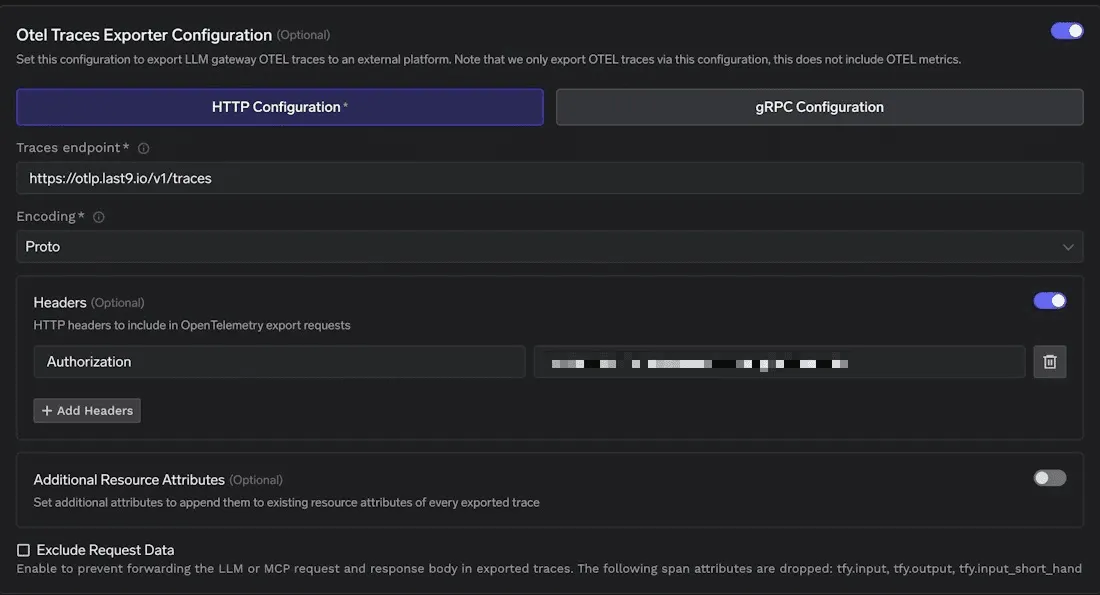
Enable the Otel Traces Exporter Configuration toggle and select the HTTP Configuration tab.
-
Set the Last9 Endpoint
Configure the following values:
Field Value Traces endpoint Paste the OTel Endpoint from Step 1 Encoding Proto -
Add Authentication Header
Click + Add Headers and add the authorization header:
Header Value AuthorizationPaste the Auth Header from Step 1
-
-
Save Your Configuration
Click Save to activate the OTEL export. All LLM traces from TrueFoundry AI Gateway will now flow to Last9.
Viewing Traces in Last9
After sending LLM requests through TrueFoundry AI Gateway, your traces appear in Last9:
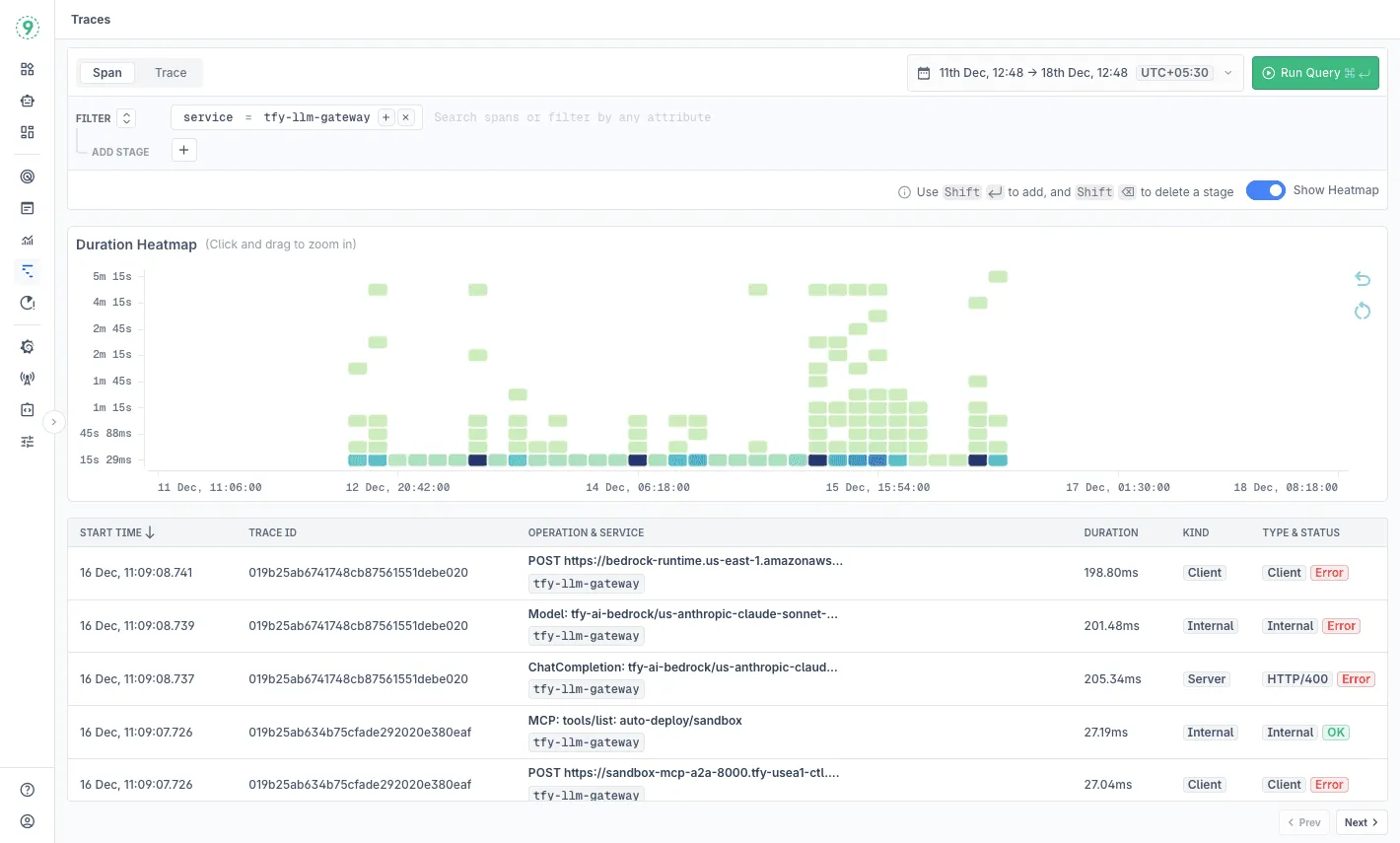
- Navigate to Traces Explorer
- Filter by service name:
tfy-llm-gateway - Explore trace data including:
- Duration heatmaps - Visual representation of latency patterns over time
- Trace details - Individual traces with operation names, durations, and status codes
- Span information - HTTP calls, MCP operations, and LLM request details
Advanced Configuration
Adding Custom Resource Attributes
Enrich your traces with custom metadata using Additional Resource Attributes. This is useful for adding environment-specific tags or organizational context.
Common attributes to consider:
env: productionregion: us-east-1team: platformtenant_id: customer-abcThese attributes appear on every exported trace and can be used in Last9 for:
- Filtering traces by environment, region, or team
- Building dashboards per business unit
- Isolating incidents affecting specific tenants
- Comparing performance across deployment contexts
Understanding Trace Data
TrueFoundry exports comprehensive trace data including:
- Gateway operations - Request routing, authentication, rate limiting
- Model provider calls - Latency and status for OpenAI, Claude, Gemini, etc.
- MCP operations - Model Context Protocol interactions
- Token metrics - Input/output token counts per request
- Cost tracking - Per-request cost calculations
Use Cases
- Production Monitoring - Track LLM request latencies, error rates, and throughput in real-time alongside your existing microservices observability.
- Cost Optimization - Correlate high-cost requests with specific routes, tenants, or models. Use insights to optimize caching policies and routing rules in TrueFoundry.
- Incident Response - When an SLO breaches, move directly from the alert to the exact trace showing which model provider, route, or configuration caused the issue.
- Safe Experimentation - Roll out new model versions or prompt strategies through TrueFoundry and observe their impact in Last9’s traces and heatmaps before full production deployment.
Troubleshooting
- Verify the Auth Header is correctly copied from Last9 (including the
Basicprefix) - Confirm the traces endpoint URL is exactly
https://otlp.last9.io/v1/traces - Check that encoding is set to
Protoin TrueFoundry - Ensure you’ve saved the OTEL configuration in TrueFoundry
Please get in touch with us on Discord or Email if you have any questions.