
Receive Alert Notifications via Flock
Setup Flock integration and receive alert notifications from Last9.
Getting started
Last9 can send alert notifications and resolutions to Flock, a team messaging platform. This document provides step-by-step instructions on how to set up Flock integration with Last9 and start receiving alert notifications.
Setting up an Incoming Webhook in Flock
-
Navigate to the Flock Developer Dashboard and sign in with your Flock account
-
Click Webhooks in the left navigation menu
-
Click Add next to Incoming Webhook

-
Configure your webhook:
- Select the Channel where you want alert notifications to be posted
- Give the webhook a descriptive Name (e.g., “Last9 Alerts”)
- Optionally, set an Icon for the webhook messages

-
Click Save and Generate URL
-
Copy the generated webhook URL from the success dialog

-
Your webhook will now appear under Manage Webhooks

Setting up a notification channel in Last9
-
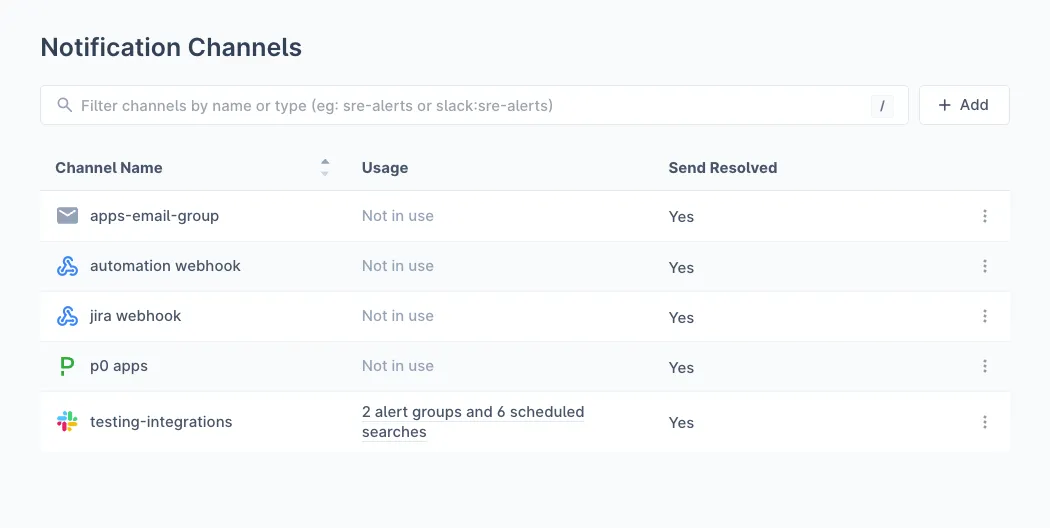
In Notification Channels, click Add to create a new channel
-
Provide the following details:
- Channel Name: A descriptive name to easily identify the channel (e.g., “Flock Production Alerts”)
- Channel: Select Webhook from the dropdown
- Webhook URL: Paste the Flock webhook URL copied from the previous step
- Send Resolved: Enable this option if you want to be notified when an alert has been resolved

-
Click Save to enable the channel
Assigning a notification channel to an alert group
-
Navigate to your Alert Group in Alert Studio
-
Click on the notification channel icons at the top of the alert group to configure notifications

-
Select your Flock channel from the Webhook dropdown under either Channels for Threat Notification or Channels for Breach Notification

Flock Notification Format
Last9 sends notifications to Flock using FlockML, which provides rich formatting.
Trigger Notifications
When an alert is triggered, the notification includes:
| Field | Description |
|---|---|
| Header | 🚨 TRIGGER: {severity icon} {summary} |
| Severity | BREACH or THREAT (uppercase) |
| Component | The affected component or service |
| Class | Type of alert (e.g., Static Threshold, SLO Breach) |
| Timestamp | When the alert was triggered (e.g., “Jan 15, 2024 at 10:30 UTC”) |
| Custom Details | Additional context like service, environment, error rates |
| Inspect | Link to “View in Last9” |
Resolved Notifications
When an alert is resolved (requires Send Resolved to be enabled), the notification includes:
| Field | Description |
|---|---|
| Header | ✅ RESOLVED: {summary} |
| Status | RESOLVED |
| Original Severity | The severity when the alert was triggered |
| Component | The affected component or service |
| Original Timestamp | When the alert was originally triggered |
| Custom Details | Context from the original alert |
| Inspect | Link to “View in Last9” |
Severity Indicators
| Severity | Icon | Description |
|---|---|---|
| Breach | 🔴 Red circle | Critical alerts requiring immediate attention |
| Threat | 🟠 Orange circle | Warning alerts indicating potential issues |
Using Terraform
You can also create the Flock notification channel using the Last9 Terraform Provider:
resource "last9_notification_channel" "flock" { name = "flock-production-alerts" type = "webhook" destination = "https://api.flock.com/hooks/sendMessage/YOUR-WEBHOOK-TOKEN" send_resolved = true}Troubleshooting
Notifications not appearing in Flock
- Verify the webhook URL is correct and starts with
https://api.flock.com/hooks/ - Check that the webhook is still active in the Flock Developer Dashboard
- Ensure the channel selected for the webhook still exists
Messages are not formatted correctly
Last9 auto-detects Flock webhooks based on the URL pattern. Ensure your webhook URL contains api.flock.com or flock.co.
Please get in touch with us on Discord or Email if you have any questions.